Spotlight Search Operators on Mac: Filters, Shortcuts, and Limits

Spotlight is the fastest way to launch apps and locate files on a Mac, but it gets frustrating when you remember a phrase inside a long PDF, a label inside a screenshot, or a moment in a recording. This guide gives you a practical cheat sheet first, then the best filters, folder scoping, and fixes. At the end, you will see when Spotlight is the right tool, and when it is time to switch to Fenn for inside-file precision.
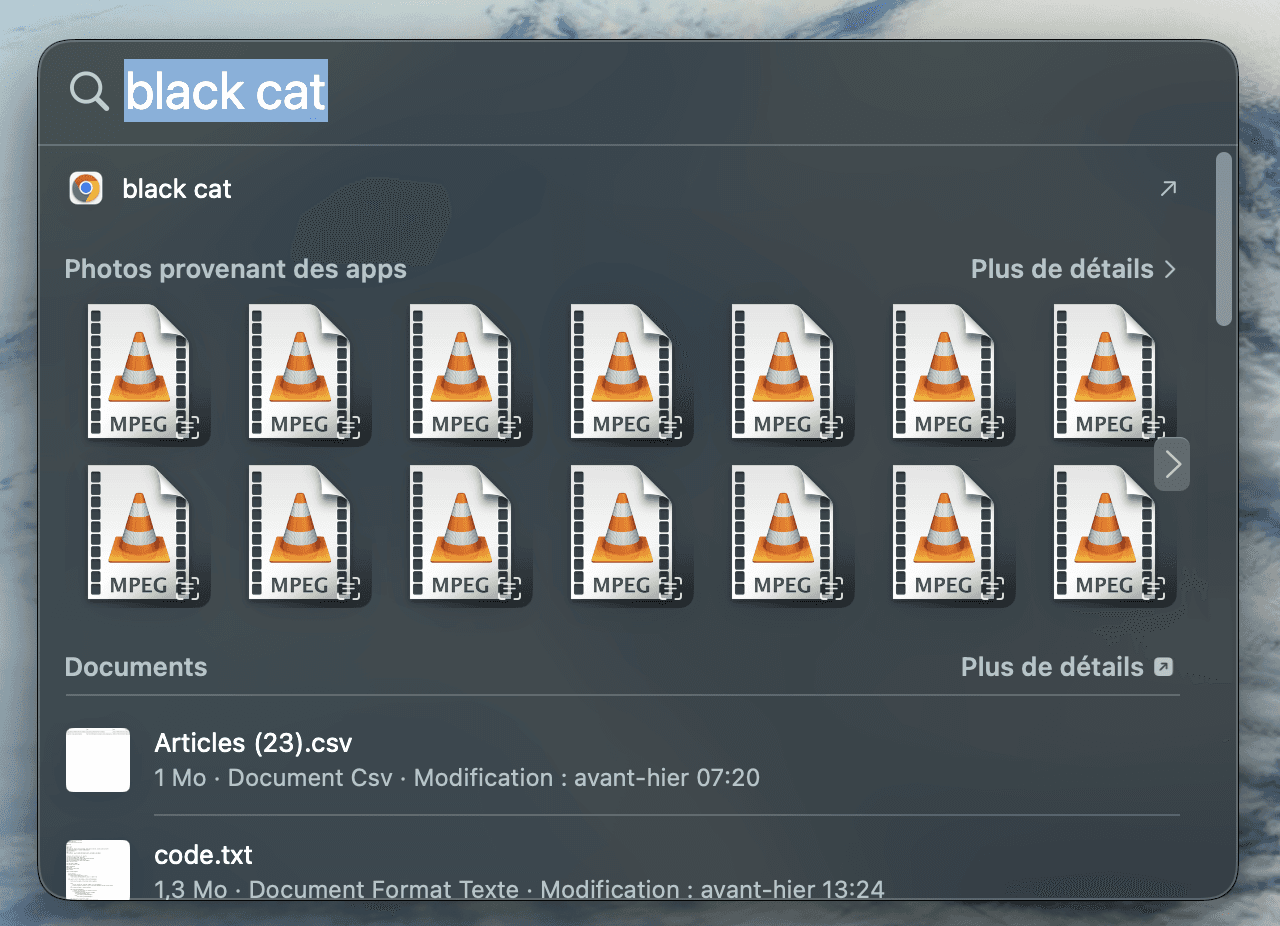
Spotlight cheat sheet
Use these in Spotlight (Command + Space) or in the Finder search field (Command + F).
What you want | Type this | Example |
|---|---|---|
Only PDFs |
|
|
Only images |
|
|
Only folders |
|
|
Only apps |
|
|
Exact phrase | Use quotes |
|
Exclude a word | Use minus sign |
|
Either term | Use |
|
Narrow by name |
|
|
Narrow by tags |
|
|
Jump back to past searches | Up arrow | Press Up to see history |
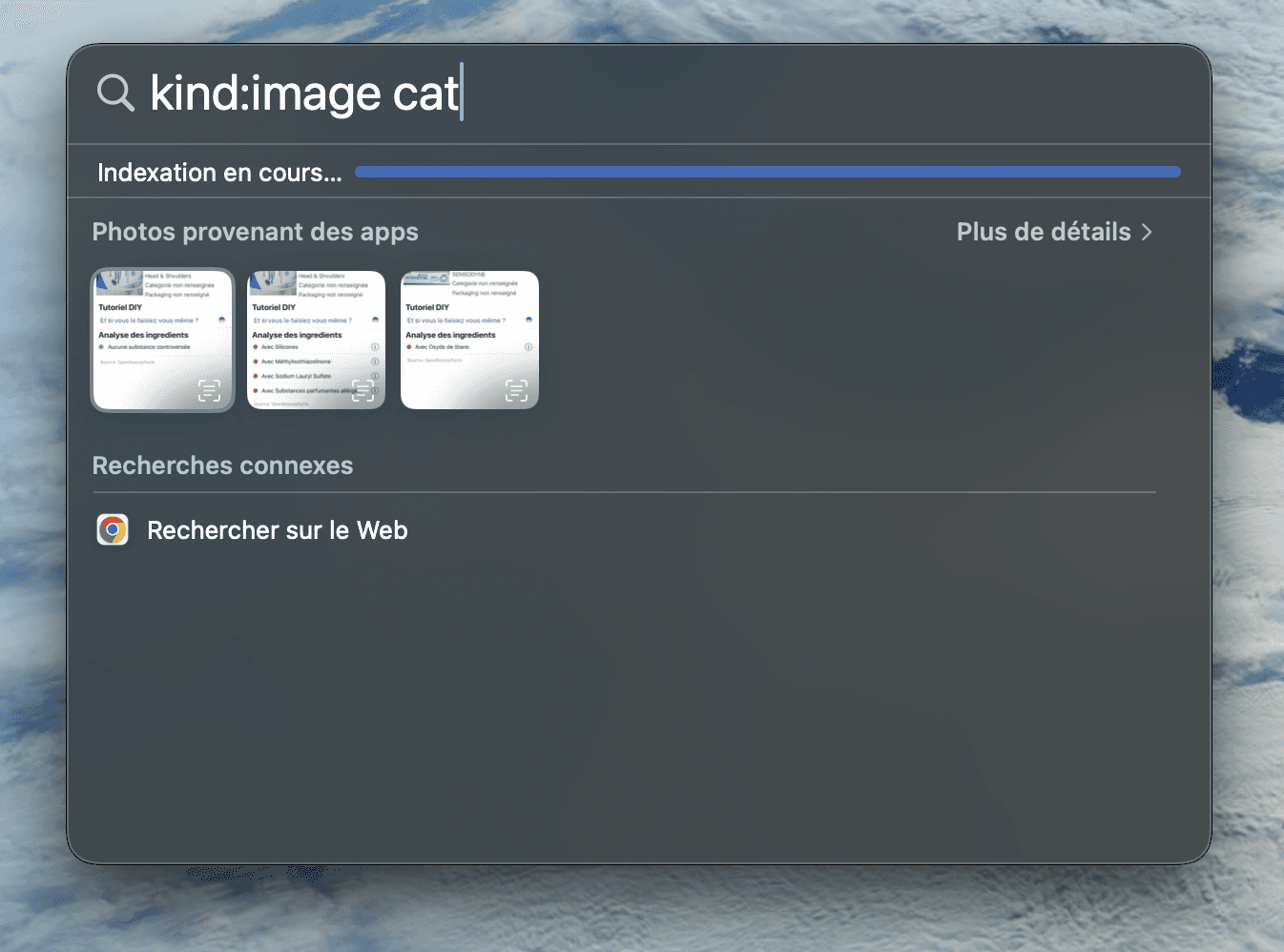
How to use Spotlight like a pro
Open Spotlight and work faster
Open Spotlight: Command + Space
Use the arrow keys to move through results
Press Return to open the highlighted result
Press Space to preview with Quick Look (when available)
Press Up Arrow to see previous Spotlight searches
Filter results by file type (kind:)
If you know the format, kind: is the fastest way to reduce noise.
Try these:
kind:pdfkind:imagekind:videokind:audiokind:folderkind:application
Example:
kind:pdf "project plan"kind:image logo
Search for an exact phrase (quotes)
When you remember a precise line, quotes reduce false positives.
Examples:
"wire transfer instructions""net retention"
Tip: Start with the shortest distinctive phrase you can remember.
Exclude results you do not want (minus sign)
If Spotlight keeps surfacing the wrong thing, exclude it.
Examples:
invoice -2023contract -draftbudget -template
Use OR when you are not sure which term is in the file
Examples:
proposal OR pitch"change of control" OR "change in control"
If you need more complex logic (multiple operators, nested logic), use the Finder search field where you can also combine filters with the + button and advanced criteria.
Search inside a specific folder (or a single drive)
Spotlight is global, which is great, until you need to restrict scope. The most reliable way to scope is to use Finder.
Open Finder and go to the folder or drive you want to search.
Press Command + F.
Choose the scope (current folder or This Mac).
Type your query, then add filters with the + button (Kind, Date, Name, and more).
Open the best candidate, then use Command + F inside that document to jump to the exact match.
Searching external drives
If Spotlight is not finding anything on an external drive, it is usually one of these:
The drive is excluded from indexing
Indexing is still running
The index needs rebuilding
Quick checks:
System Settings → Spotlight → Search Privacy, confirm the drive is not excluded
If results look wrong, rebuild indexing for that drive by toggling it in Search Privacy (add it, then remove it)
Common Spotlight problems (and fast fixes)
Spotlight misses files that exist
Confirm the folder or drive is not excluded in Spotlight privacy settings
Give it time if you just connected a drive or moved lots of files
If it is still wrong, rebuild the Spotlight index for the affected location
Spotlight finds the file, but not the right place inside it
This is the most common frustration with professional workflows:
Long PDFs where you need the exact clause
Slide decks where you remember a chart, not the filename
Screenshots where the text is inside the image
Audio and video where the answer is spoken, not written
Spotlight is great at locating items, but it often stops at the file level.
When Spotlight is enough
Use Spotlight when:
You remember the app name or file name
You want to launch something quickly
You need a quick global search and the top match is usually correct
When Spotlight hits its limits (and what to use instead)
If you are working across lots of files and formats, the bottleneck is not “find the file”, it is “open the exact spot inside the file”.
That is what Fenn is built for.
Fenn is a private AI file search agent for macOS that runs on-device by default. It searches inside PDFs, slides, screenshots and images, plus audio and video, then opens the exact page, frame, or sentence you need, with context snippets so you can confirm the match before you open it. It is designed for fast workflows on Apple Silicon.

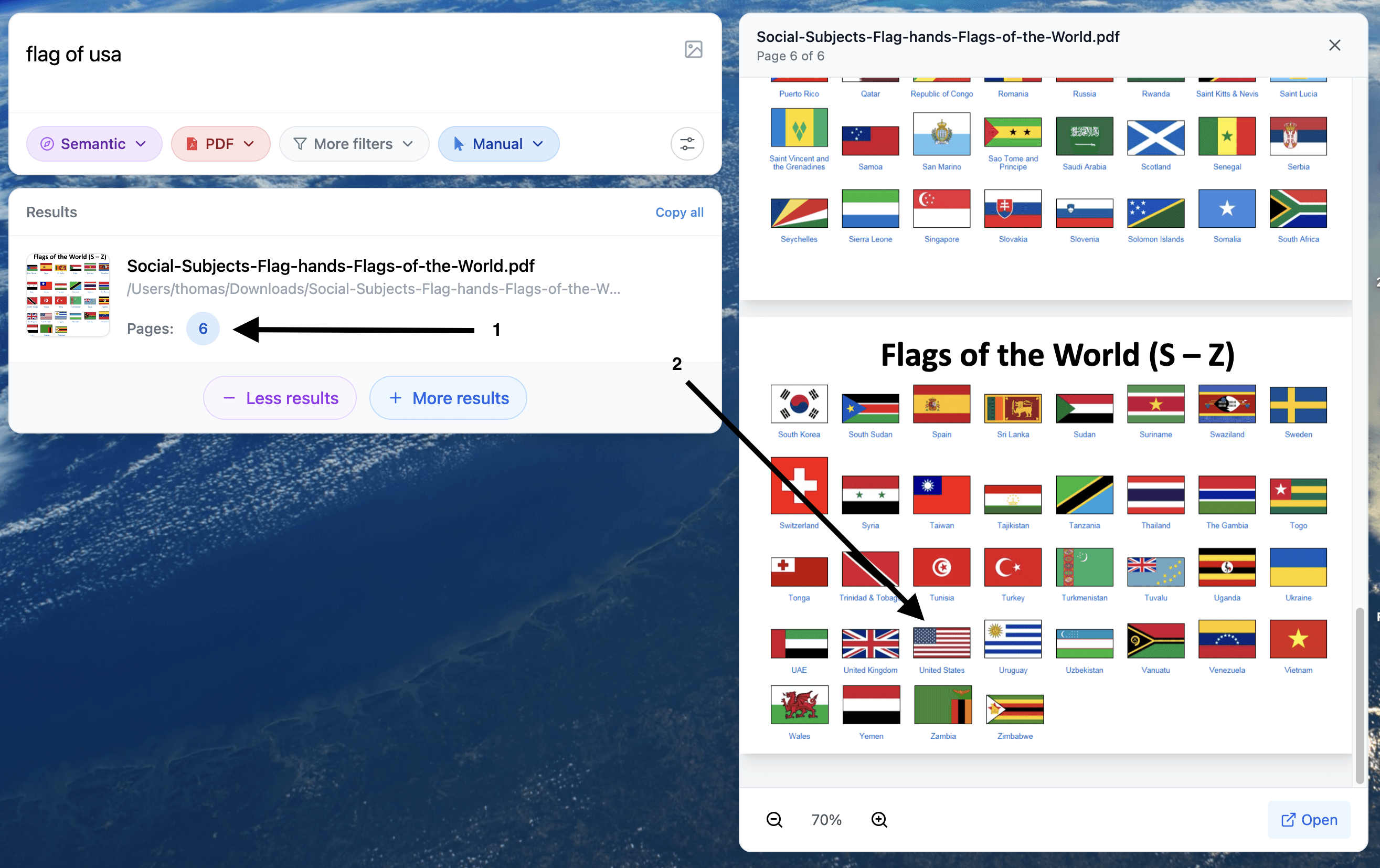
A simple workflow that pairs well with Spotlight
Use Spotlight to quickly locate an app or a known file name.
Use Fenn when you need to find the exact line, page, slide, or timestamp across many files.
If you want to compare plans before downloading, see pricing:
https://www.usefenn.com#pricing
You might also like
How to search keywords on Mac (Command + F and more):
https://www.usefenn.com/blog/how-to-search-keywords-mac
Find text in images and screenshots on Mac:
https://www.usefenn.com/blog/find-text-in-images-screenshots-mac
Finder vs Spotlight vs Fenn:
https://www.usefenn.com/blog/finder-vs-spotlight-vs-fenn
Search external drives on Mac:
https://www.usefenn.com/blog/search-external-drives-mac-fenn
Spotlight unreliable in 2025 (and what works instead):
https://www.usefenn.com/blog/spotlight-unreliable-2025-fenn-ai-search