The first 5 things to do on a new high end MacBook Pro
The first 5 things to do on a new high end MacBook Pro
You unpack a new MacBook Pro with a fast Apple silicon chip, plenty of RAM, and a big SSD. It feels powerful, but the default setup does not really use what you paid for.
You can keep treating it like any other laptop, or you can turn it into a private AI workstation that understands your own files.
Here are the first five things to do on a new high end MacBook Pro if you care about privacy, on device AI, and getting real work done with Fenn.
1. Update macOS and lock in the basics
Before you install anything serious, make sure the system is ready.
Install the latest stable macOS release for your machine
Sign in with your Apple ID and set up iCloud only for what you really need
Review Privacy and Security settings
Turn off anything that uploads more data than you are comfortable with
Enable FileVault if you have not already
You now have a secure base where a high end chip and plenty of memory can be used for your own workloads, not just background services.
2. Decide what should live on this Mac
A powerful MacBook Pro with large storage invites clutter. You can avoid that by deciding early what this machine is for.
Create a simple structure for:
Active projects
Contracts and legal documents
Finance and operations material
Creative exports and assets
Research and reference material
Archives that really need to stay local
You do not need perfect folders. You just need sensible top level buckets that reflect how you work. Fenn does not require strict naming, it cares about content, but a bit of structure keeps the worst chaos under control.
Ask yourself:
Which clients or projects must stay on this Mac
Which material is too sensitive for random cloud tools
Which recordings, screenshots, and PDFs you use often
Those areas will become the core of your private knowledge base.
3. Install Fenn as part of the standard setup
Most people install browsers and chat apps first. If you want this Mac to be a private AI workstation, Fenn should be in that first wave.
Fenn is a file search engine for macOS that:
Indexes PDFs, Office documents, and long reports
Reads text inside images and screenshots
Searches Apple Mail messages stored on your Mac
Works with notes, internal docs, audio, and video
Runs on device by default for privacy
On a high end MacBook Pro, the memory and chip you paid for become the engine behind this index.
Add your first sources
Inside Fenn, add:
Your main project folders in Documents or a Projects folder
Contracts or Legal folders
Finance, invoices, and statements
A Screenshots folder and any reference images
The folder where your Apple Mail stores messages on disk
Let Fenn index on device. The first pass over a large library will take some time, especially if you brought a lot of material from an older machine, but it all stays on your Mac.
Once indexing starts, this laptop is no longer just storage. It becomes a searchable memory of your work.
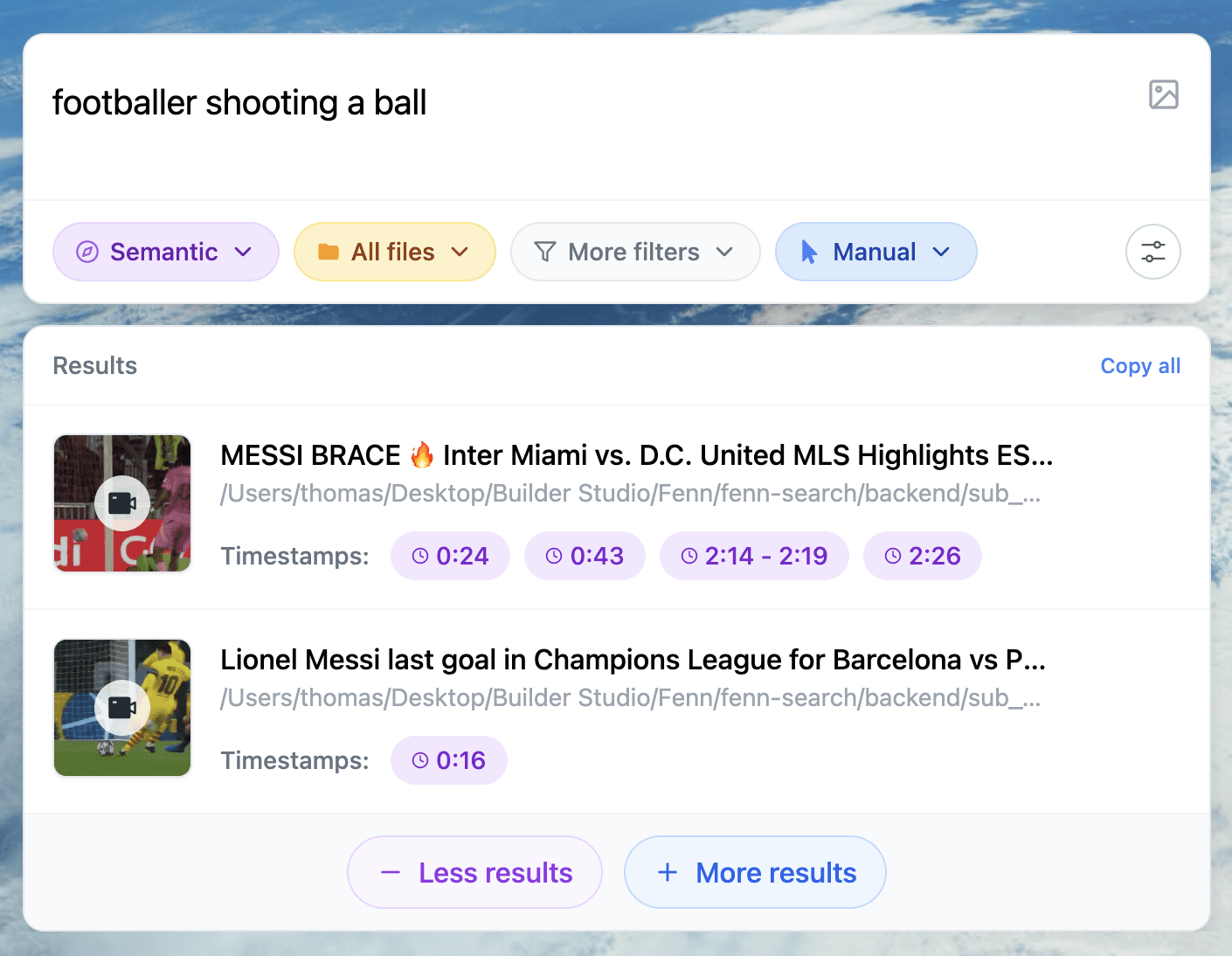
4. Turn on private AI workflows with search modes and Agent Mode
With Fenn installed and your main folders indexed, you can start using the machine as a private AI assistant, not just a fast Finder.
Use the right search mode for the job
Semantic mode
Ask in natural language when you remember the idea, not the exact words.
Example, “contract that mentions termination within 30 days and auto renewal.”Keyword mode
Ask for exact phrases when you care about wording.
Example, a particular clause, product name, or error message.Hybrid mode
Combine both, for example “board deck slide” plus a specific phrase.Exact mode
Use when every character matters, such as IDs, invoice numbers, or codes.
On a high end MacBook Pro, these modes stay responsive even when you have other heavy apps open.
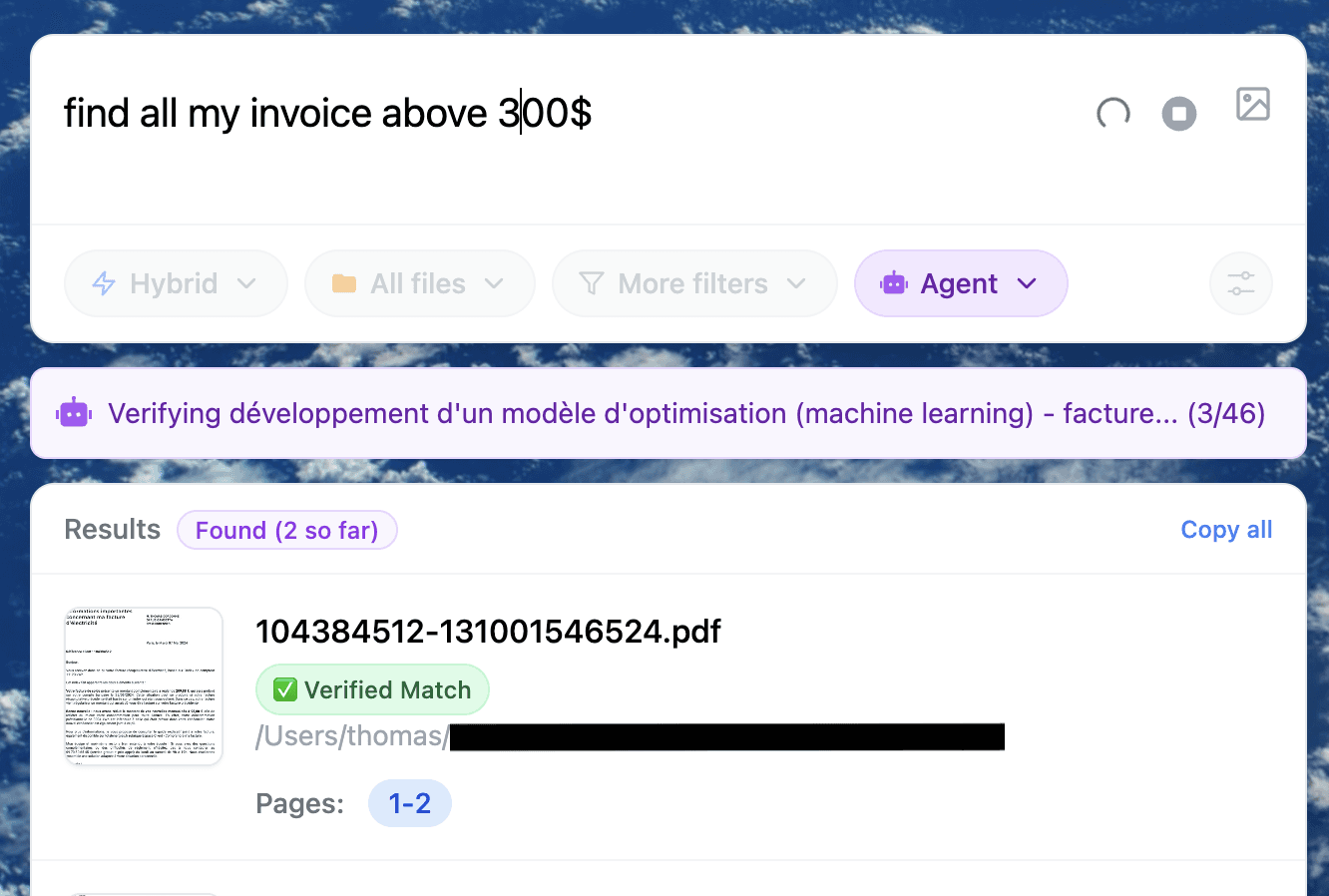
Reach for Agent Mode when the question is bigger than one file
This is where your hardware really helps. Instead of opening twenty PDFs and emails manually, you ask a larger question, for example:
“List NDAs that auto renew and require more than 60 days notice, show the relevant clauses.”
“Invoices from vendor X above 500 dollars in 2024, grouped by month.”
“Board slides and emails where we discussed moving production to the new region.”
“Screenshots and PDFs that show churn above 8 percent after the January price increase.”
Agent Mode reads across your indexed content on device and gives you structured answers. You then open the surfaced files and verify.
Agent Mode works best on higher memory Macs, and a high end MacBook Pro is ideal here. It also runs on 16 GB machines. If you want help tuning settings on your hardware, you can reach out to the Fenn team.
5. Build small habits that use your Mac properly
The real value of a high end MacBook Pro shows up when private AI is part of your routine, not just a demo.
A few simple habits make a big difference.
Use the Fenn shortcut first
Whenever you catch yourself thinking “where is that file” or “who said that”, press your Fenn shortcut before you open Finder.Drop important material into indexed folders
When you download a key PDF or export a deck, put it in one of the folders you indexed with Fenn instead of leaving it in Downloads.Screenshot with intent
Keep screenshots in a consistent folder that Fenn indexes. You will be able to find dashboards, chat snippets, and UI states later by searching their text.Add new project folders to Fenn
When you start a new client or initiative, add its folder as a source early so Fenn learns it as you work.Use Fenn before you paste into a cloud tool
If you are about to paste a contract, deck, or internal doc into a random AI tool, stop and ask whether Fenn can answer your question locally instead.
These habits turn your MacBook Pro into a private AI machine built around your own knowledge, not someone else’s dataset.
Pricing
If this MacBook Pro is your main work machine, Fenn is a small upgrade cost compared to the hardware.
Local, 9 USD per month, billed annually
On device indexing. Semantic and keyword search. 1 Mac. Updates. Founder support.Lifetime, 199 USD one time
On device indexing. Semantic and keyword search. 1 year of updates. 1 Mac. Founder support.
You bought powerful hardware so you could work faster and keep control of your data. Fenn turns that into reality.
Download Fenn for Mac. Private on device. Find the moment, not the file.