Turn your 2 TB Mac SSD into a searchable knowledge base

Turn your 2 TB Mac SSD into a searchable knowledge base
You paid for a 2 TB SSD on your Mac so you could keep everything local. Projects, decks, PDFs, raw files, screenshots, recordings. It felt smart at the time.
A year or two later it just feels full.
You know the file is on your Mac somewhere. You remember the slide, the clause, the dashboard, the email. Finder and Spotlight give you a long list of filenames and you still end up opening things one by one.
With Fenn on your Mac, that 2 TB drive becomes a searchable knowledge base. Fenn indexes your content on device and lets you ask in natural language, then surfaces the exact page, message, or moment you need so you can open it yourself.
Why a 2 TB Mac SSD slowly turns into a junk drawer
If you work on a Mac all day, local storage fills up with:
PDFs from clients, vendors, and internal teams
Decks and spreadsheets from every project
Screenshots of chats, dashboards, and UI
Audio and video recordings of calls and demos
Exports from design tools and research tools
Apple Mail messages stored on disk
You do not have time to build perfect folder trees and you rarely rename files. So you rely on:
A few high level folders
A busy Downloads folder
A desktop that is always a little too full
Memory of “I am sure I saved it somewhere”
Spotlight helps a bit. It still focuses on filenames and basic text. It does not understand the structure of a 2 TB archive of real work.
Why classic Mac search falls short on huge archives
On a small library, you can get away with:
Searching a folder by name
Skimming file names
Opening two or three PDFs and scrolling
On a 2 TB SSD that stops working.
You hit problems like:
Important content locked in long PDFs and scans
Information spread across Mail, docs, images, and recordings
Screenshots with critical text that Spotlight does not treat as documents
Old projects that you vaguely remember but cannot name precisely
You bought a big SSD so you could keep everything. Classic search assumes you still remember where everything lives.
Fenn assumes you only remember the moment, not the filename.
What Fenn does with a full 2 TB Mac
Fenn is a file search engine for macOS. It is built for Apple silicon and runs on device by default.
Fenn can index:
PDFs and Office documents
Text inside images and screenshots
Apple Mail messages stored on your Mac
Notes and internal docs
Audio and video files with useful timestamps
You point Fenn at the folders that matter. It indexes content on your Mac. Then you search by what you remember, not by filename.
Examples:
“Contract where notice period is 60 days and auto renews”
“Board deck slide that shows churn spike after January price increase”
“Screenshot of analytics dashboard where NRR crosses 120 percent”
“Apple Mail thread where Alice approved the pricing change last October”
Fenn shows results with context so you can open the right file or message and verify.
Search modes that make a big SSD usable
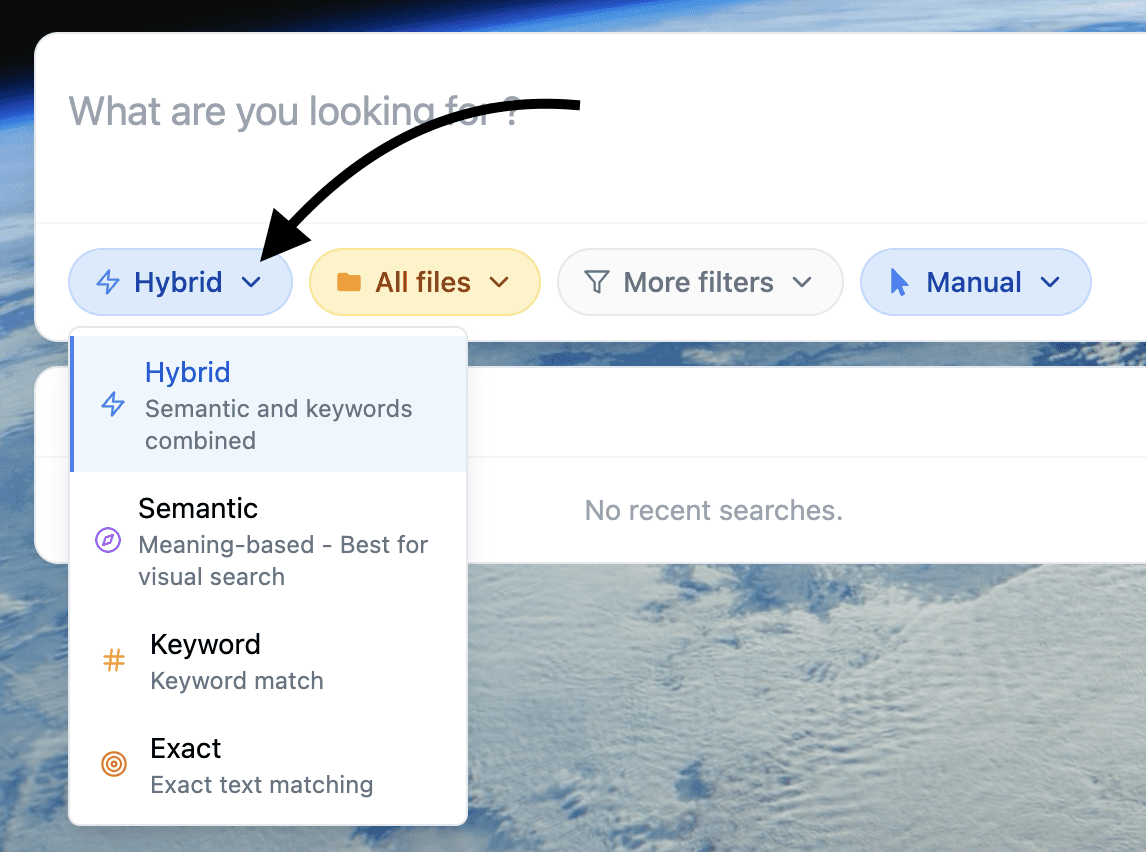
A large SSD means mixed content. Different jobs need different ways to search. Fenn gives you four modes.
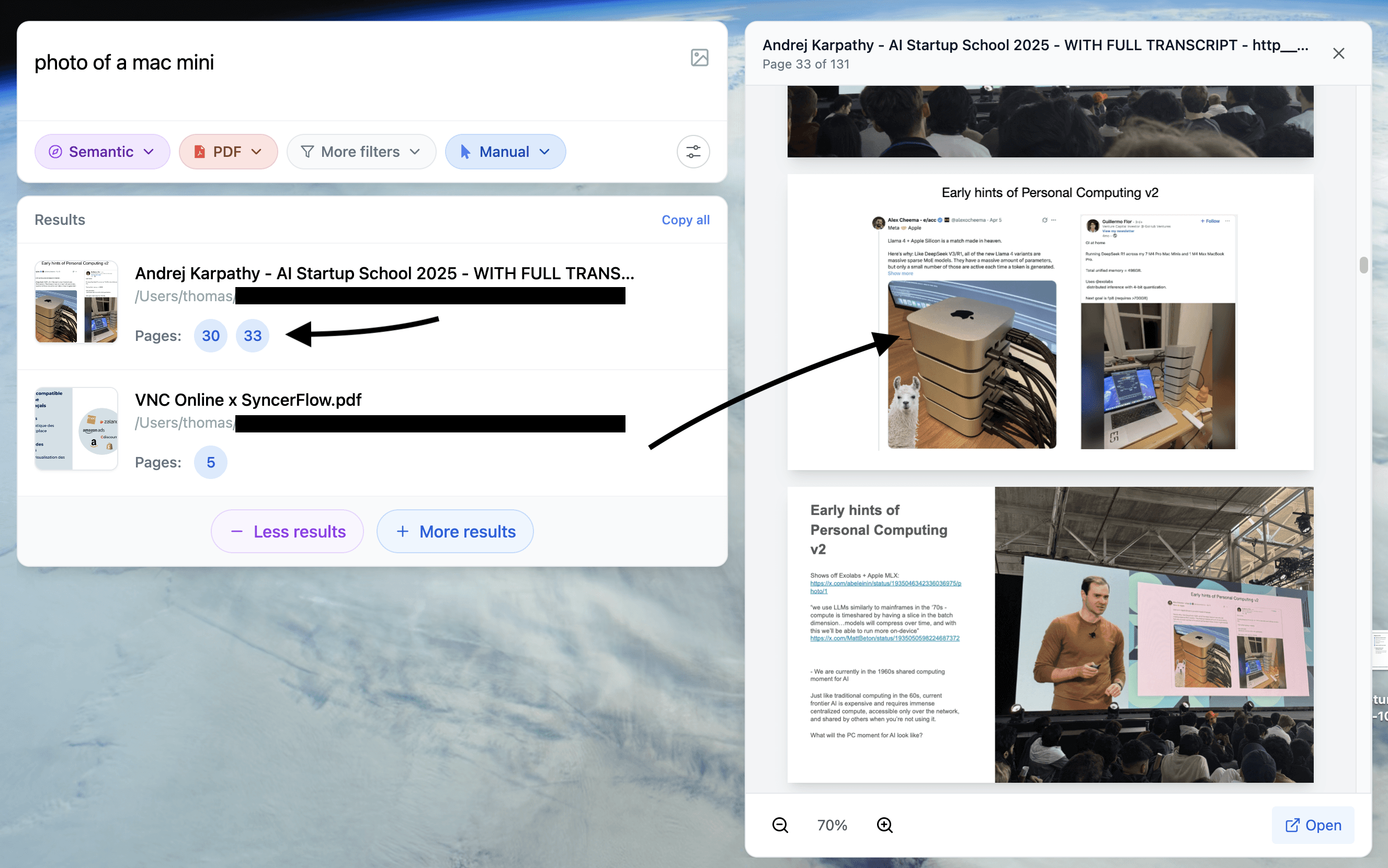
Semantic mode
Ask in natural language. Great when you remember the idea, not the exact wording.
Example: “research paper page that compares Tahoe and Sequoia for battery impact.”Keyword mode
Exact words or phrases for product names, legal text, and codes.
Example: “Termination for convenience within thirty 30 days.”Hybrid mode
Combine semantic and keyword in one pass.
Useful when you want meaning plus one or two exact phrases.Exact mode
Strict literal matches when every character matters.
Example: ticket IDs, invoice numbers, error messages.
On a 2 TB Mac, you will move between these modes a lot. Fenn lets you switch with a simple control, then refine results and open the items that actually matter.
Turning your SSD into a knowledge base, step by step
You do not need to clean everything first. You just need to choose the right sources.
Install Fenn on an Apple silicon Mac
Sonoma 14 or later is recommended.Start with a small set of high value folders
For example:~/Documentsfor projects and exportsA Contracts or Legal folder
A Finance or Invoices folder
Your main project archives and research folders
Add screenshots and reference images
Include your Screenshots folder and any place you store UI captures or dashboard images. Fenn reads text in these.Add Apple Mail storage if you rely on email
Include the folder where your Mail is stored on disk so Fenn can search message content along with documents.Let Fenn index on device
Leave your Mac plugged in for the first pass if you have a large archive. All processing happens locally.Use your keyboard shortcut and search daily
Make Fenn your first reflex when you need to recover a decision, clause, slide, or message from your past work.
Over time, you can expand to more folders as you see value. The more your SSD holds, the more your private knowledge base grows.
Agent Mode for heavy questions across years of files
A 2 TB SSD often means ten years of work. Sometimes you are not looking for one file. You want an answer that spans many.
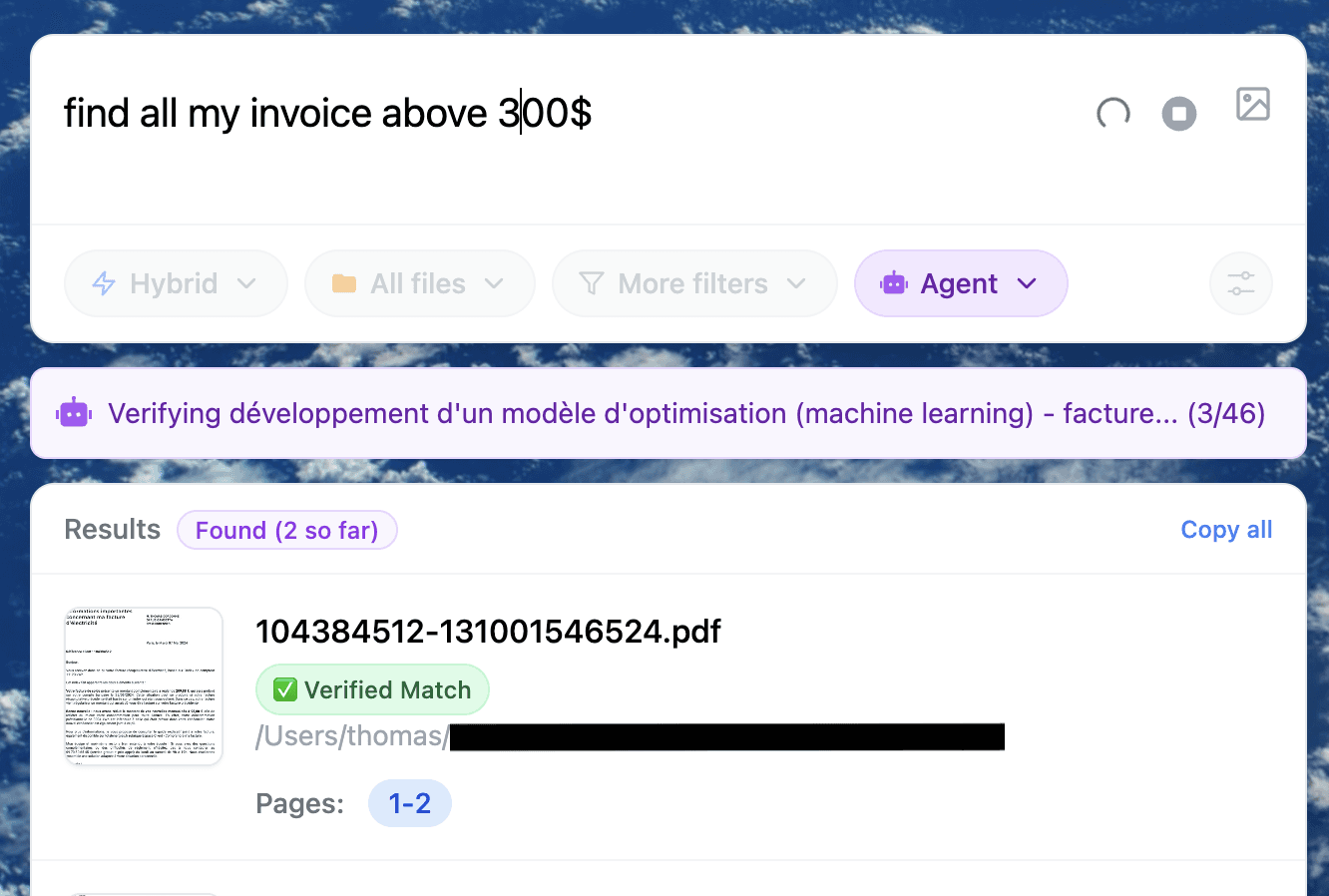
Agent Mode is where a powerful Mac and a full SSD really shine.
Instead of opening twenty PDFs and mails yourself, you can ask Fenn a larger question, for example:
“List NDAs that auto renew and require more than 60 days notice, show the relevant clauses.”
“Invoices from vendor X above 500 dollars in 2024, grouped by month.”
“Board deck slides and emails where we discussed moving to Tahoe 26.2 for production.”
“Screenshots and PDFs that show churn above 8 percent after the January price change.”
Agent Mode uses models running on your Mac to read, filter, and summarize across your indexed content. You stay in control. You open the surfaced files yourself.
Agent Mode works best on higher memory Macs, especially if you index a lot of large files. It also runs on 16 GB. If you want help tuning settings on your Mac, contact us.
Performance notes for big libraries
A 2 TB SSD plus Fenn benefits from a few simple choices.
Apple silicon matters
M series chips give you faster indexing and smoother semantic search.Memory is key for comfort
16 GB is usable, especially if you do not run heavy apps at the same time.
32 GB or more feels better when you have a lot indexed and you want Agent Mode to work over large sets.
You control what to index
You do not need to point Fenn at your entire disk. Start with the parts of your SSD that map to real work outcomes.
Fenn does not upload your archive to a server. Everything runs on your Mac, so the power and memory you paid for are used on your own files.
Who gets the most out of a 2 TB Mac with Fenn
Founders and operators
Board decks, investor updates, contracts, product specs, pricing tests.
Use Fenn to recover the exact proof when someone asks, “when did we decide that” or “what did we promise.”
Designers and creators
Raws, exports, briefs, feedback PDFs, and Mail.
Use Fenn to connect creative assets with the documents and messages that frame them.
Legal and finance
Contracts, NDAs, MSAs, statements, and invoices stored for years.
Use Fenn and Agent Mode to triage, search clauses, and pull numbers without exporting everything to a third party tool.
Researchers and analysts
Papers, reports, transcripts, dashboards, screenshots.
Use Fenn to search across formats and time, then open the exact page or chart to verify.
If your SSD is full of work, Fenn turns that from clutter into a private knowledge base that lives on your Mac.
Pricing
Two simple options today.
Local, 9 USD per month, billed annually
On device indexing. Semantic and keyword search. 1 Mac. Updates. Founder support.Lifetime, 199 USD one time
On device indexing. Semantic and keyword search. 1 year of updates. 1 Mac. Founder support.
You keep paying for your storage either way. Fenn makes that storage pay you back in time saved.
Download Fenn for Mac. Private on device. Find the moment, not the file.