Chat with your Mac, private AI on your own files

Chat with your Mac, private AI on your own files
You already chat with models in the browser. They know a lot about the public internet, not much about your contracts, decks, invoices, or screenshots.
When you want an answer about your own work, you still end up searching folders, opening PDFs, scrolling through Mail, and trying to remember where the proof lives.
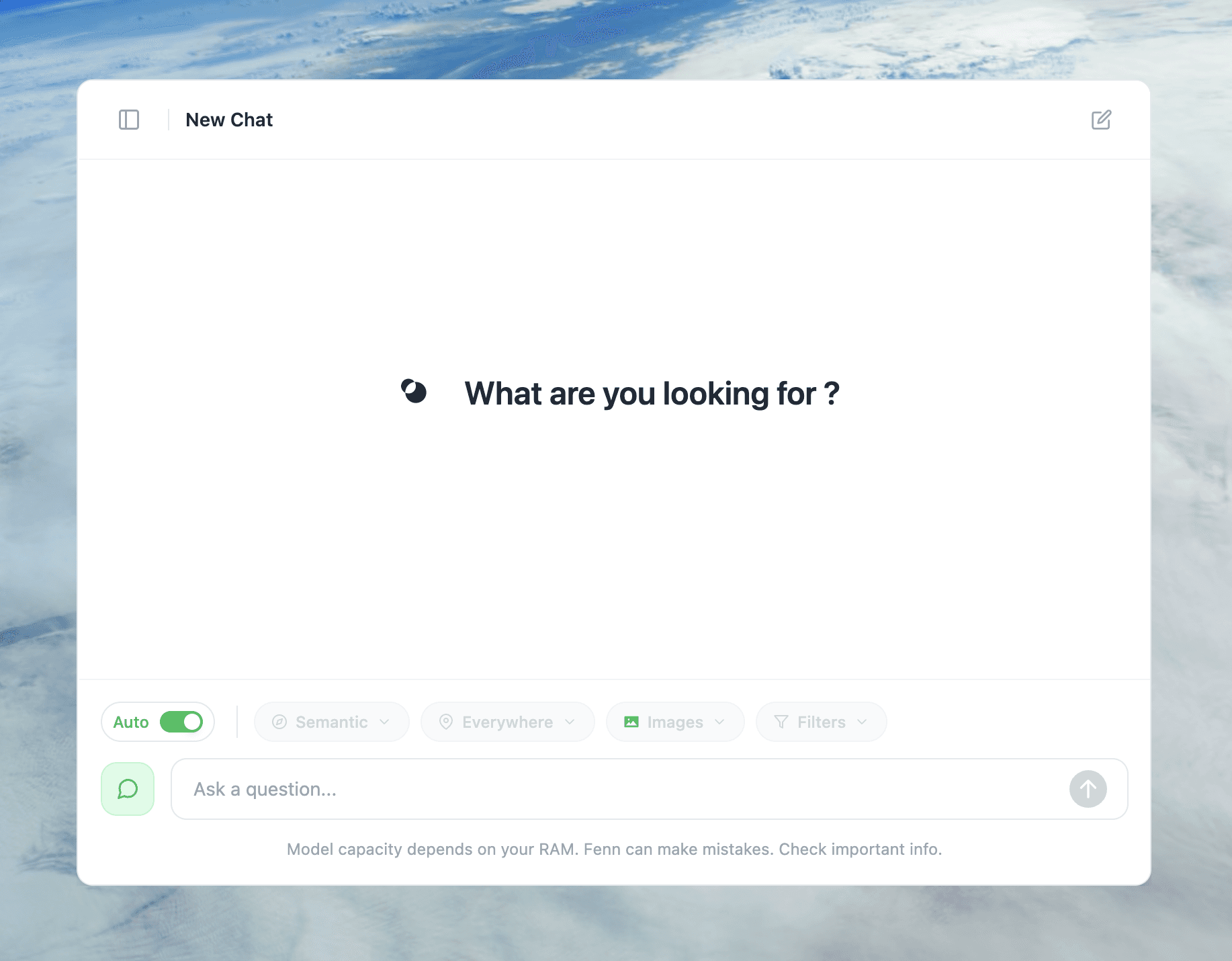
With Fenn’s new Chat mode on your Mac, you talk to your own files in a simple chat window. Fenn indexes your content on device, then uses models running on Apple silicon to answer questions, follow up, and refine, without sending your archive to a remote server.
You are not chatting with the internet. You are chatting with your Mac.
Download Fenn for Mac. Private on device. Find the moment, not the file.
Why chatting with your own files changes the game
Search is great when you know what to ask for.
File names
Exact phrases
One specific clause or slide
Real work is often messier:
“What did we actually decide about this client”
“Which contracts auto renew and when”
“How did churn move after the last price change”
“Where did we talk about moving to Tahoe 26.2”
You do not want fifty search results. You want a clear answer you can trust, plus links back to the originals.
Chat mode gives you that workflow:
You ask a question in natural language
Fenn finds relevant files across your Mac
Local models read them and answer
You follow up, narrow, or ask from a different angle
You open the files Fenn used and verify
All of this happens on your machine, using the Mac you already bought.
How Fenn’s Chat mode works on your Mac
Fenn already indexes:
PDFs and long documents
Text inside images and screenshots
Apple Mail messages stored on your Mac
Notes and internal docs
Audio and video with useful timestamps
Chat mode sits on top of that index.
You open Chat mode in Fenn.
You type a question about your work.
Fenn uses your index to find relevant passages, pages and messages.
Local models running on Apple silicon read those snippets.
You get a concise answer, plus context and links back to the files.
You ask follow up questions in the same thread.
Fenn does not send your files to a cloud model. The Mac is doing the work.
What you can ask your Mac now
Here are concrete examples you can use today once your folders and Mail are indexed.
Contracts and legal
“Which NDAs auto renew and require more than 60 days notice. Show who they are with and the clause text.”
“Summarize the liability caps in our customer contracts. Highlight exceptions.”
“Which agreements mention governing law in California. List the counterparties.”
Finance and operations
“Invoices from vendor X above 500 dollars this year, grouped by month and project.”
“What did we tell the board about runway in the last three decks. Pull the key numbers.”
“Compare last year and this year revenue from Stripe and Paddle. Use what you can find in PDFs and exports.”
Product and research
“What are the main arguments for and against moving from Sequoia to Tahoe in our docs and decks.”
“Collect the main customer complaints about search from support PDFs and meeting notes.”
“Summarize findings about Mac battery impact from our internal research files.”
Founders and leads
“What did we commit to this customer in terms of rollout timeline and features. Use contracts, decks and email.”
“List top three risks mentioned in recent board and investor material. Include where they appear.”
The pattern is simple. You describe the question the way you would to a colleague. Fenn turns that into a conversation over your real files.
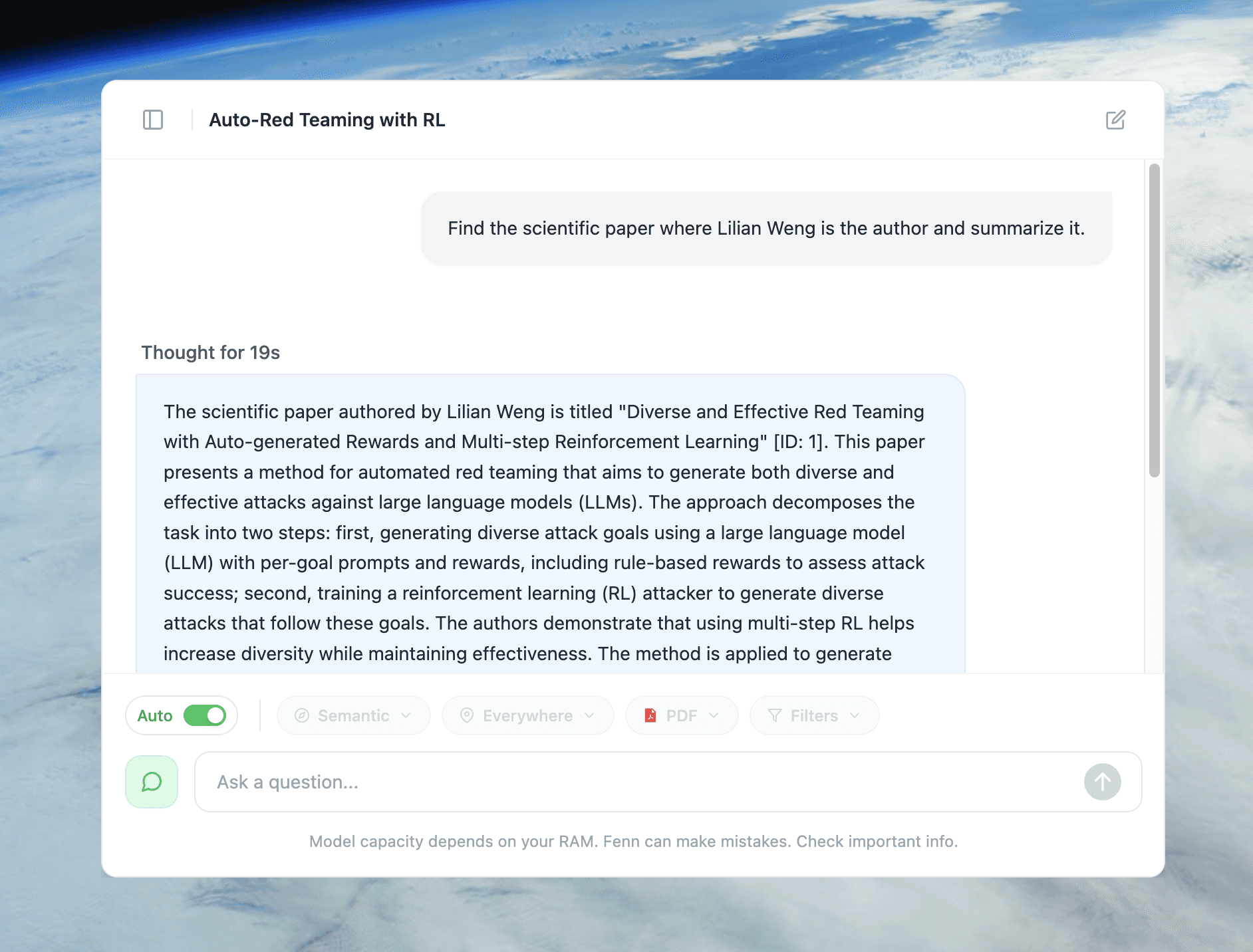
Chat mode vs classic search in Fenn
You now have three layers that work together.
1. Instant search
Fenn search modes are still the fastest way to jump to a specific moment.
Semantic, when you remember the idea
Keyword, when wording matters
Hybrid, when you want both
Exact, when every character counts
Use these when you already know roughly what you want to open.
2. Agent style questions inside Chat
Chat mode uses models on your Mac to go beyond a single search.
You can:
Ask for summaries across many files
Ask for comparisons and grouped views
Ask follow up questions like “narrow that to 2024” or “only for vendor X”
Stay in the same conversation while you refine the slice of your archive you care about
You are not crafting prompts for a web model. You are talking to your Mac about your own material.
3. Open the originals
At any point you can:
Open the PDFs or docs used in an answer
Jump into the Mail thread Chat mode referenced
Go to the exact page or timestamp that matters
The chat is a layer on top of your files, not a black box that replaces them.
Privacy and performance on Apple silicon
Chat mode is built for Apple silicon.
Models run on your Mac
Fenn uses your local index, not a remote copy
Your questions and the content used to answer them stay on device
This works best when your Mac has enough memory to breathe.
16 GB Macs can run Chat mode, especially on focused questions
32 GB or more feels better if you have a large archive and ask heavier questions
If you are not sure about your configuration, you can still start. Index a few key folders, try Chat mode on realistic questions, then expand from there. If you have 16 GB and hit limits, you can contact the team and they will help you tune it.
How to start chatting with your Mac in one session
You do not have to index everything at once. Start where it hurts most.
Install Fenn on an Apple silicon Mac
Sonoma 14 or later is recommended.Pick three to five folders that matter
Projects or Clients
Legal or Contracts
Finance or Invoices
Research and reports
Screenshots and reference material
The folder where Apple Mail stores messages
Add them as sources in Fenn
You choose what Chat mode can see.Let Fenn index on device
The first pass over big folders takes time. Leave your Mac plugged in.Open Chat mode and ask a real question
Not a demo prompt. Something you would normally solve by digging through files.Follow up like you would with a teammate
Ask it to narrow, expand, regroup, or clarify. Then open the files it used.
After that, every new saved contract, deck, export, or Mail thread becomes part of a conversation you can have with your Mac.
Pricing
You have two options:
Local, 9 USD per month, billed annually
On device indexing. Semantic and keyword search. Chat with your own files on 1 Mac. Updates. Founder support.Lifetime, 199 USD one time
On device indexing. Semantic and keyword search. Chat mode on your Mac. 1 year of updates. 1 Mac. Founder support.
Download Fenn for Mac. Private on device. Find the moment, not the file.