Turn Your Mac Into a Searchable Knowledge Base With On-Device AI
You remember the paragraph, not the filename. You remember the slide, not the folder. You remember the moment in a meeting recording, not the timestamp.
If your Mac holds the real context of your work, contracts, research PDFs, decks, screenshots, and calls, then your Mac is already a knowledge base. The missing piece is search that actually works inside your files, privately.
The real problem: your work is inside files, not filenames
Most “productivity systems” assume the hard part is organizing. In reality, the hard part is retrieval:
You need the clause inside a 120-page PDF, not the PDF itself.
You need the slide where pricing was discussed, not the deck name.
You need the screenshot you took two weeks ago, not the app you used.
You need the moment in a call where the decision was made, not the audio file.
This is why your Mac becomes a knowledge base over time. It accumulates the facts, decisions, and evidence of your work. The issue is that traditional search tools were not designed to jump to the exact spot inside your content.
Why typical Mac search breaks down
Even when indexing finishes, most built-in tools still struggle with what modern work looks like:
They bias toward filenames and metadata. Great if you named everything perfectly, useless when you only remember a sentence.
They do not reliably search inside everything. PDFs might work sometimes, screenshots and images often do not, audio and video are usually dead ends.
They do not open at the exact moment. Finding a file is not the same as finding the page, slide, frame, or timestamp you need.
Privacy gets messy fast. Cloud-based AI workflows often require uploading client docs, internal decks, or sensitive PDFs, which many professionals cannot do.
Your knowledge base needs to stay local, fast, and precise.
What “on-device AI knowledge base” actually means
A practical on-device AI knowledge base does three things:
Indexes the content of your files locally (not just the names).
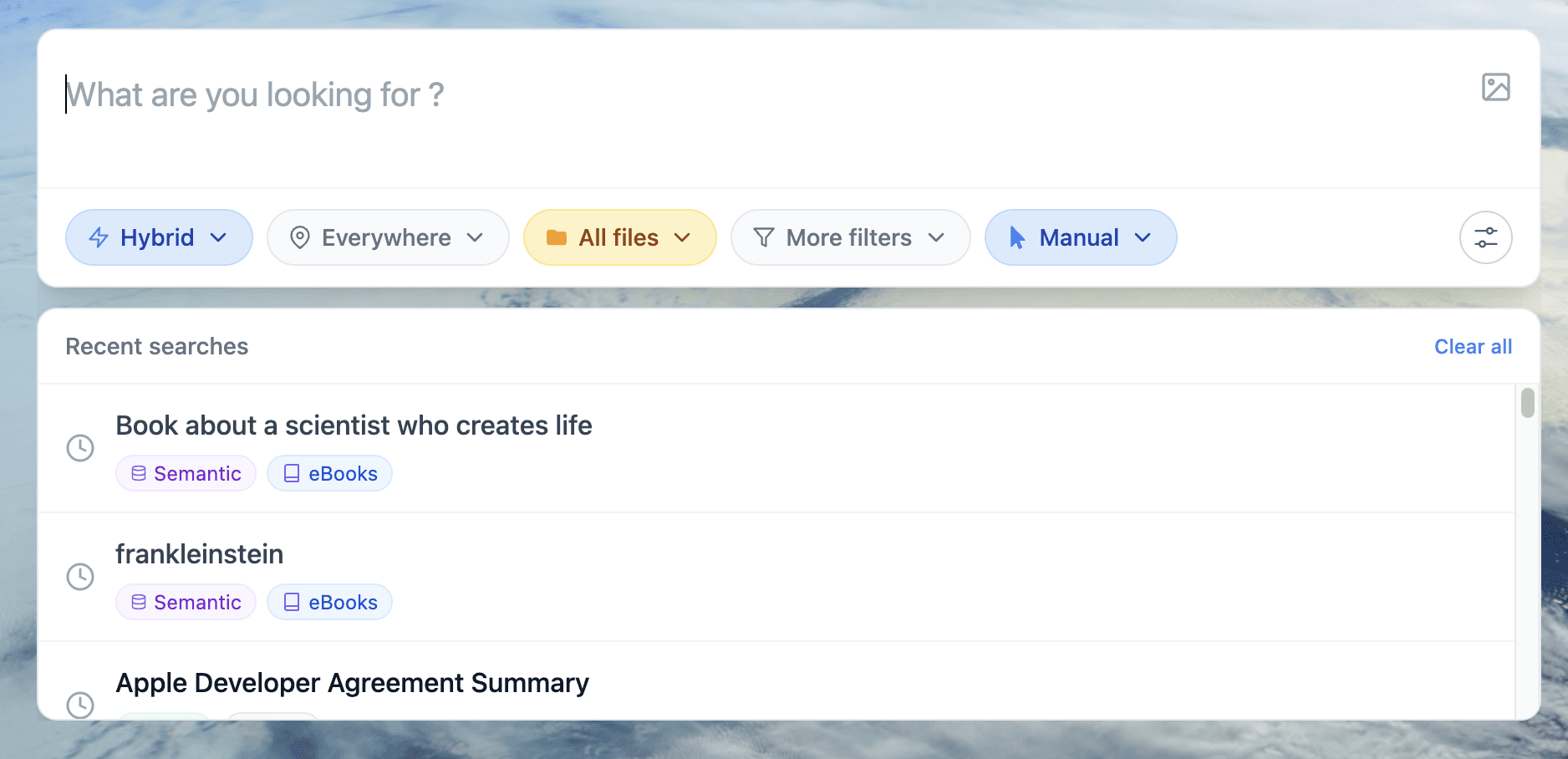
Lets you search the way you think (keywords when you remember exact text, semantic when you remember meaning, hybrid when you have both).
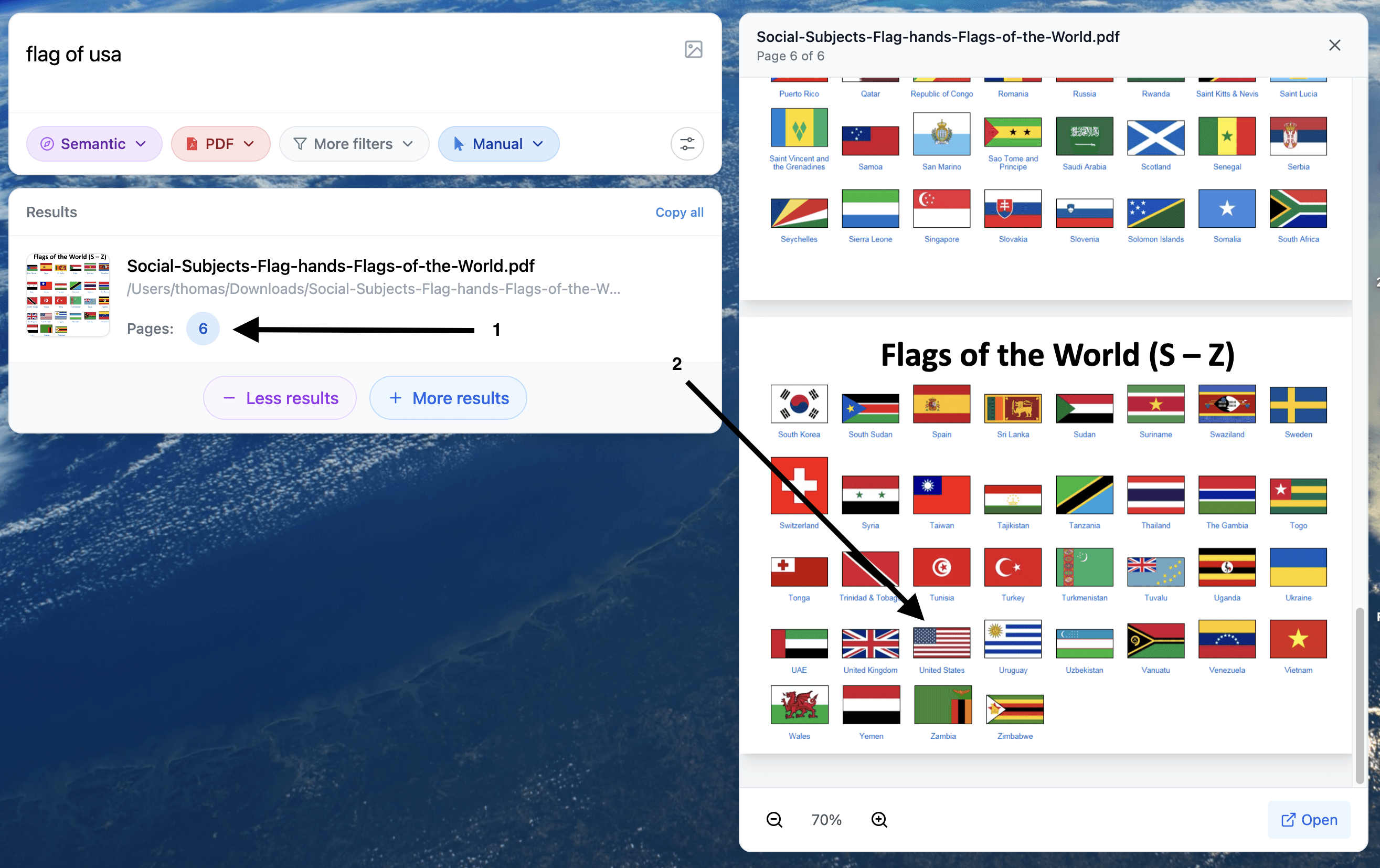
Opens directly to the answer (page in a PDF, slide in a deck, timestamp in a recording, frame in a video), so you can act immediately.
That is the mental model for how to position Fenn in this article: not as “search,” but as “find the moment.”
How to build your Mac knowledge base with Fenn
Below is a workflow you can copy exactly. It showcases the three interaction styles you mentioned: Manual, Agent, and Chat.
Step 1: Choose what your knowledge base includes
Start by selecting the folders and apps where your work actually lives:
Client folders, project folders
PDFs and slide decks
Screenshots and images
Meeting recordings, interviews, voice notes
Videos (screen recordings, demos, training)
Once you pick sources, Fenn indexes locally on your Mac.
Step 2: Use Manual search when you want speed and control
Manual mode is perfect when you have a clear target and you want the shortest path to it.
Use the right search type for the memory you have:
Keyword when you remember exact terms (part numbers, clause names, identifiers).
Semantic when you remember meaning (the idea, not the exact wording).
Hybrid when you remember both (a topic plus a few exact terms).
Exact when you need a precise match (great for legal, finance, research).
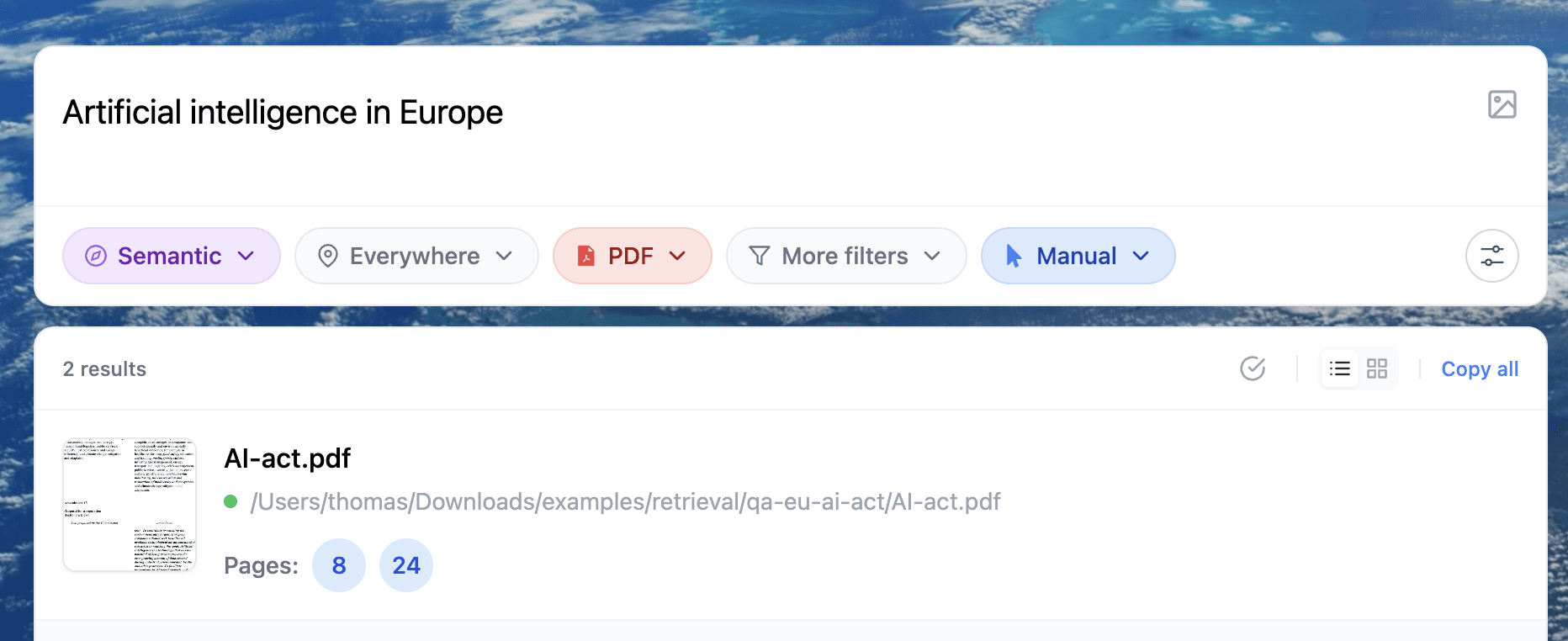
What makes this a “knowledge base” is the output: you do not just get “the file,” you get a snippet of the exact place inside it, and you open right there.
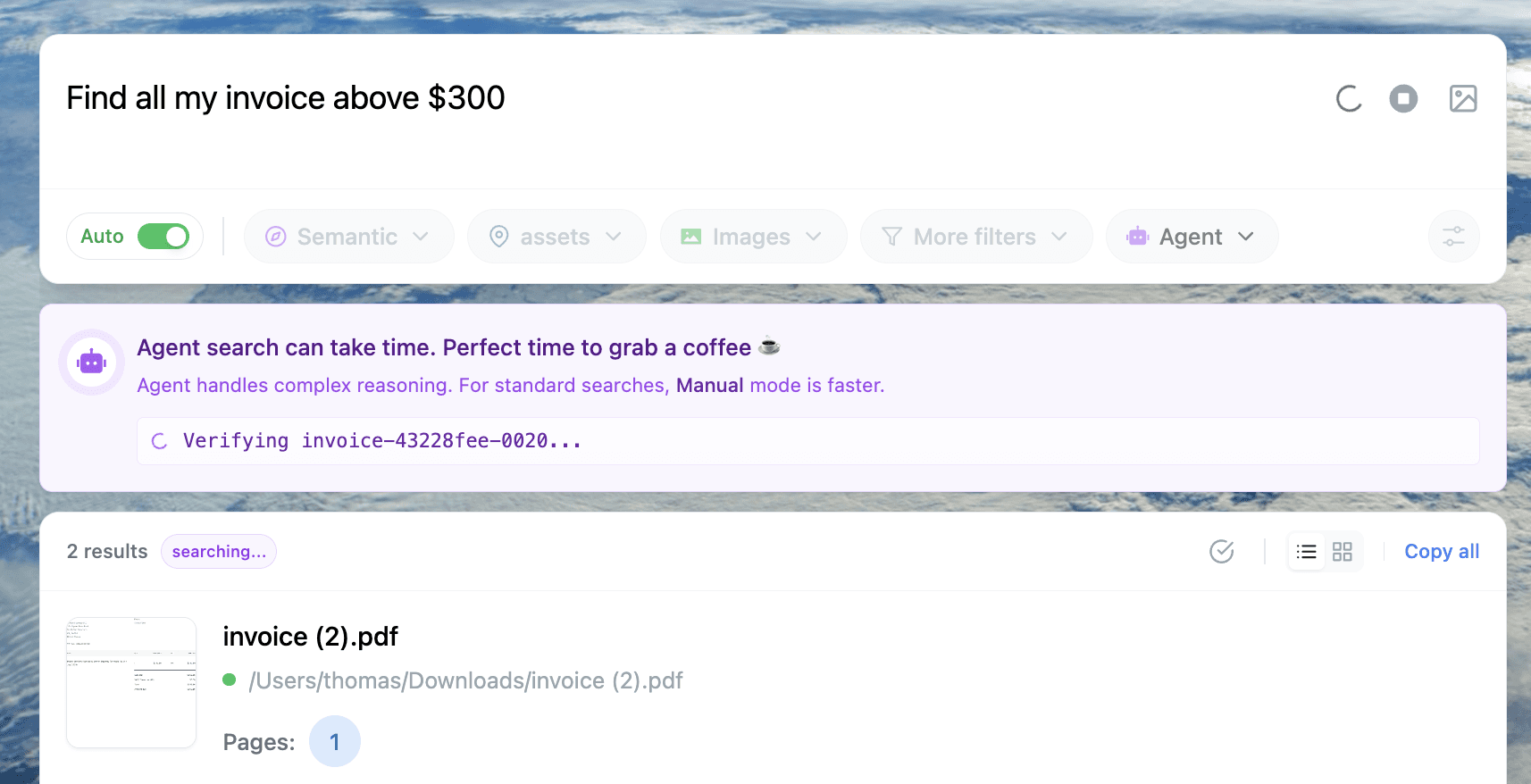
Step 3: Use Agent mode when the question needs work
Agent mode is for questions that are natural language and slightly messy, the kind you would ask a coworker:
“Find where we discussed renewal terms and show me the clause.”
“Which slide had the churn assumption and what was the number?”
“In last week’s call, where did we agree on the deadline?”
This is where your Mac knowledge base feels intelligent. The agent can handle the “search plus reasoning” step that normally costs you 10 minutes of clicking.
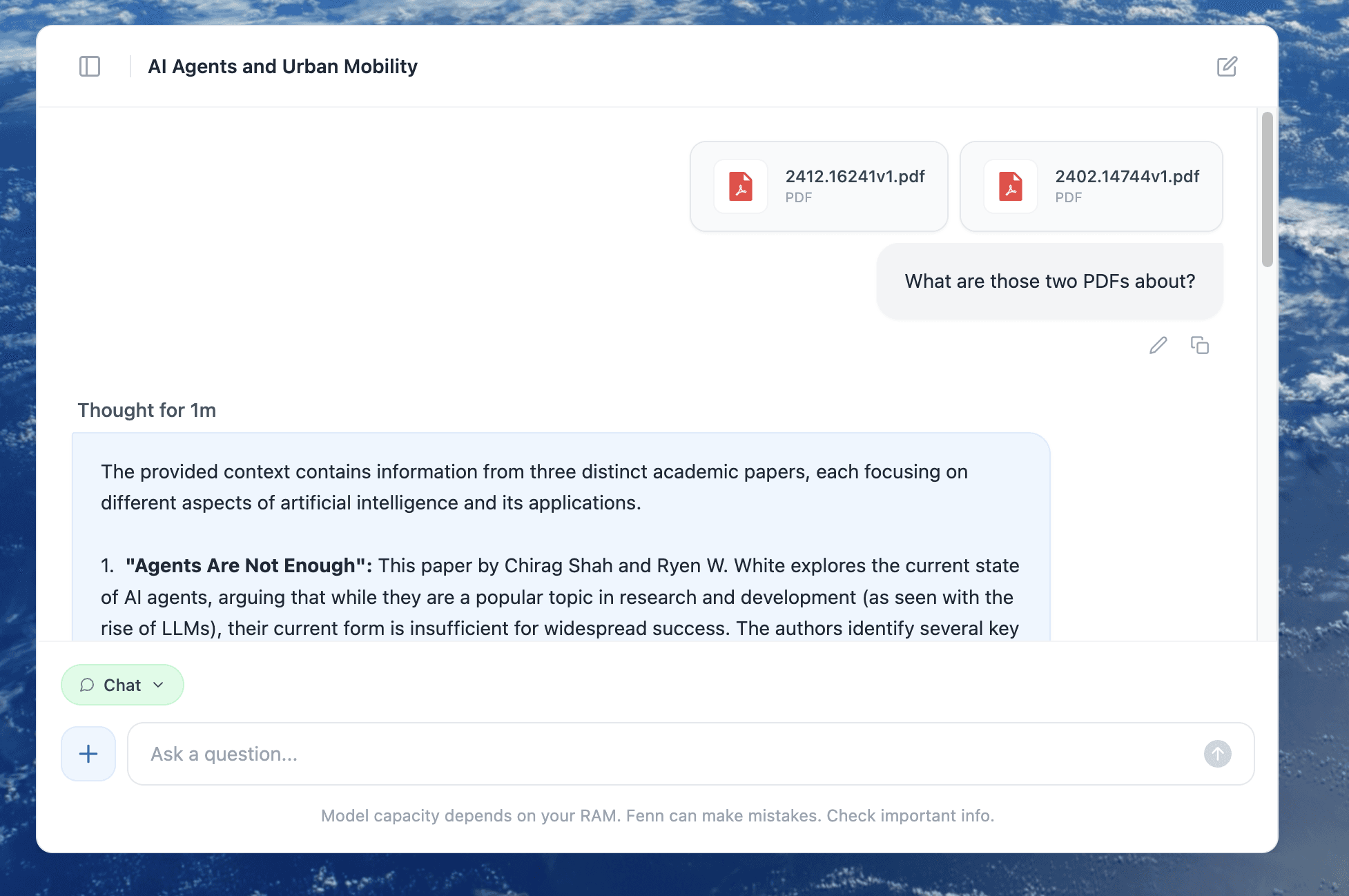
Step 4: Use Chat mode when you want answers, not links
Chat mode is best when you want an explanation grounded in your files:
“Summarize the key risks mentioned across these PDFs.”
“What did the deck say about pricing tiers?”
“List the action items from this transcript.”
You still keep the privacy model: on-device, local indexing, your data stays on your Mac.
Step 5: Jump straight to the moment that matters
This is the conversion moment for the reader. Spell it out clearly:
Open the exact PDF page where the clause appears.
Open the exact slide where the metric is mentioned.
Open the exact timestamp in audio where the decision was made.
Open the exact frame in video where the setting is shown.
That is the difference between “search” and “knowledge base.”
Mini case: from 15 minutes of hunting to 30 seconds
Before: You remember a single sentence about a “termination window” from a client agreement. You search folders, open three PDFs, scroll, Cmd+F, repeat. It takes 10 to 15 minutes, and you are still not fully sure you found the latest version.
After: You type the phrase you remember (or even the concept), get a hit with a snippet, and open directly to the page. You confirm it in seconds and move on.
Multiply that by five times a day and the ROI is obvious, especially for anyone working with confidential material.
Make your Mac searchable, privately
Your Mac already contains the truth of your work. What you need is the ability to retrieve it instantly, without uploading sensitive files anywhere.
Download Fenn and find the moment, not the file.