Fenn vs VidFinder: Find the Clip or Find the Moment?

VidFinder and Fenn can both help you search a video library on Mac.
But they solve different versions of the problem.
clipVidFinder is focused on visually organizing clips. It helps you bring videos from folders and external drives into one library, search by filenames or tags, describe what a shot looks like, preview clips, and drag them into an editor.
Fenn goes deeper.
It helps you search what was said, what was written, who appeared, and the exact moment where a result occurs. It also searches the documents, notes, images, emails, and other files around the video project.
The simple difference is:
VidFinder helps you find the clip. Fenn helps you find the moment.
VidFinder is a visual video library
VidFinder is designed for creators with footage scattered across folders, cloud-synced directories, and external drives.
It provides a visual grid where you can:
browse video clips
scrub through previews
add tags
search filenames and folder names
describe what is visible in a shot
select clips and drag them into editing software
This is useful when you are looking for something visual, such as:
a beach at sunset
someone wearing a red jacket
a close-up of a product
a wide shot of a city
VidFinder is a focused tool for browsing and retrieving video clips.
But visual clip search is only one part of working with video.
Fenn searches inside the video
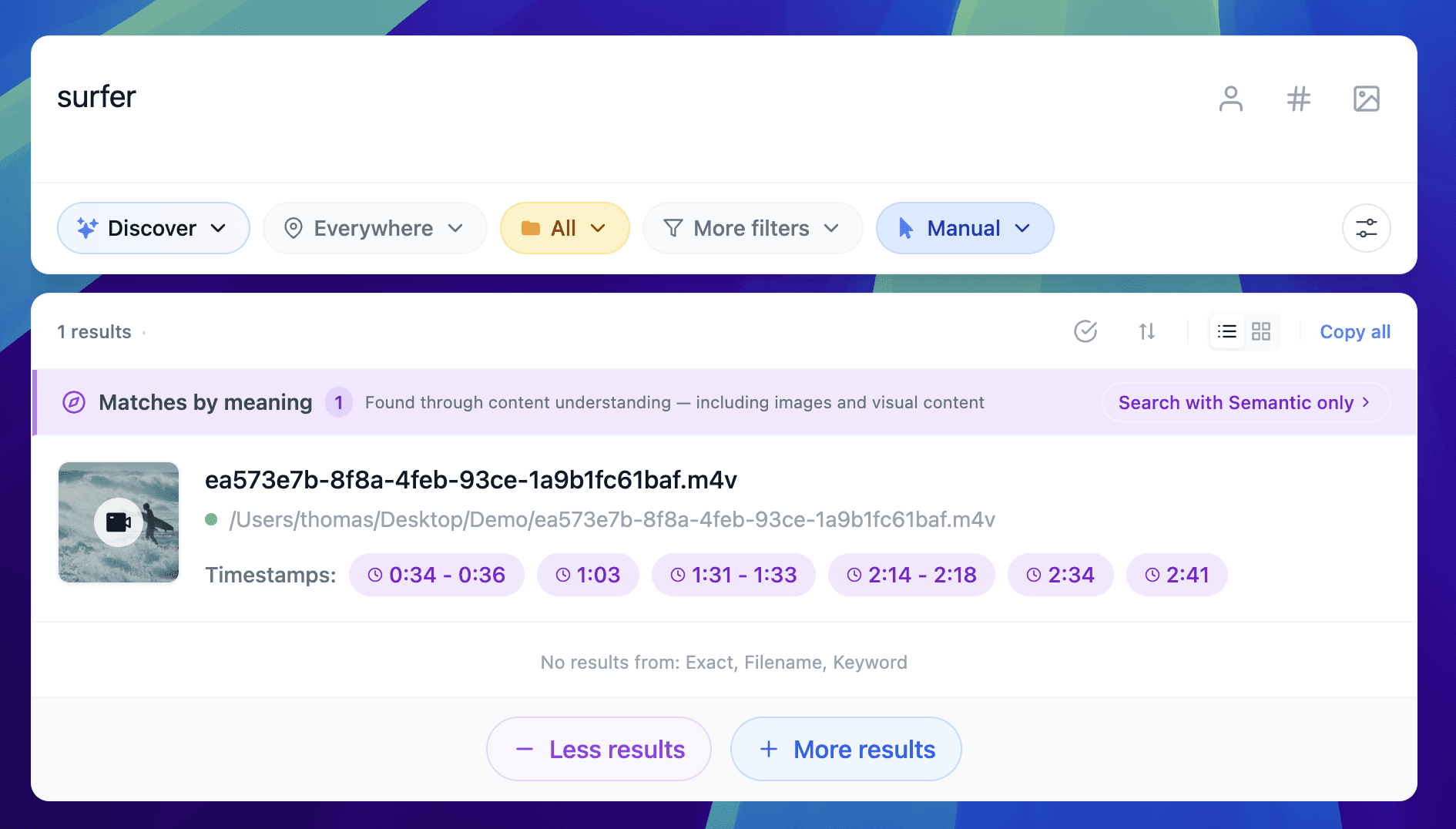
Sometimes you do not remember what the shot looked like.
You remember what happened inside it.
You may need to find:
the moment a client mentioned a deadline
a product code visible on screen
a person appearing in event footage
a sentence spoken during an interview
a slide title shown during a recording
the timestamp where a logo appeared
VidFinder’s public documentation says its visual search does not transcribe spoken words or read text shown on screen.
Fenn can search those layers.
You can search speech, visible text, faces, and visual content, then open the video at the relevant timestamp.
That is a different kind of retrieval.
A matching two-hour video is not always the answer.
The answer is at 01:17:42.
Search for people across videos

Face search is particularly useful for large video archives.
You may know that a person appears somewhere across several event recordings, interviews, camera archives, or client projects, but not remember which file contains them.
Fenn can help you search for that face across indexed videos and locate the moments where the person appears.
VidFinder can visually match a general description such as “person in a red jacket,” but its public feature documentation does not describe dedicated identity-based face recognition for finding the same person across multiple clips.
For producers and editors, that distinction matters.
You are often searching for a specific person, not just any person who looks similar to a text description.
Find text shown inside footage
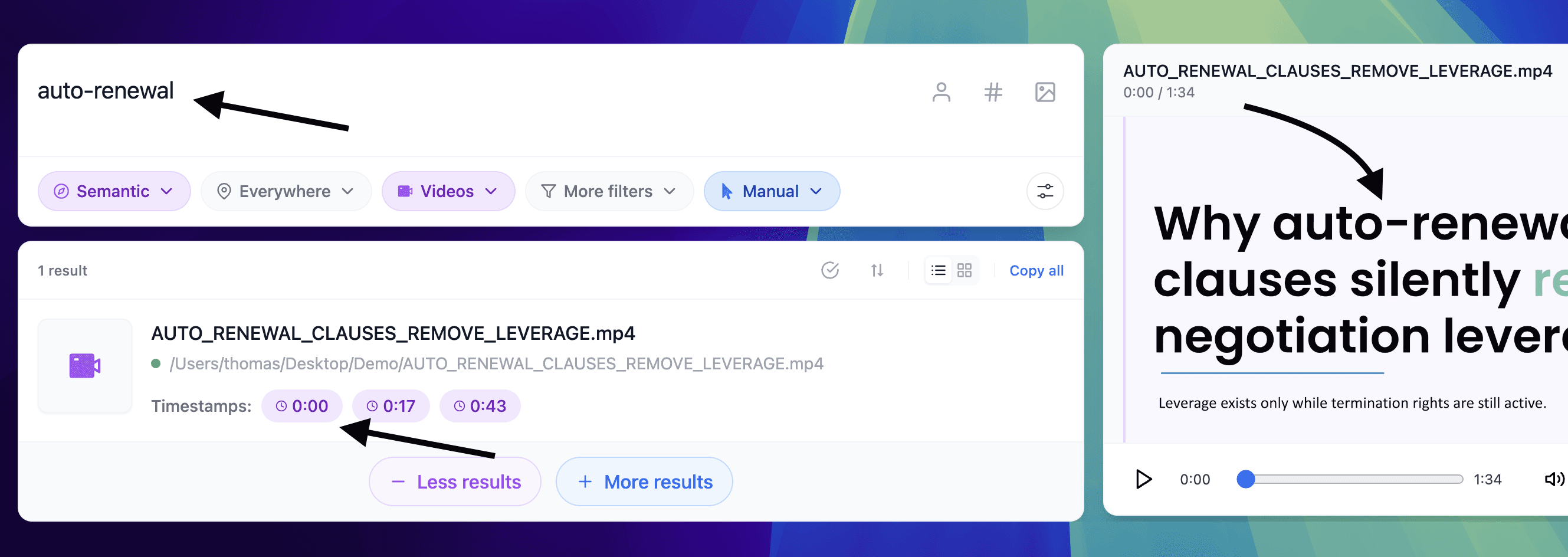
Video often contains valuable text:
presentation slides
product labels
jersey numbers
subtitles
dashboards
street signs
serial numbers
screen recordings
lower thirds
VidFinder says its Smart Search does not read on-screen text.
Fenn can make visible text inside videos searchable.
That means you can search for a word or number you remember seeing, even when it never appeared in the filename or folder name.
Find spoken words
The same applies to audio.
A video editor may need the interview where someone discussed a specific subject.
A producer may need the moment a speaker mentioned a company name.
A researcher may need the section where a participant described an event.
VidFinder’s search is visual, not transcript-based.
Fenn can transcribe audio and video, search what was said, and take you to the relevant timestamp.
Instead of replaying every recording, you search the words you remember.
Brief moments need precision
VidFinder creates its visual search index by sampling frames across each clip.
That makes visual search efficient, but its documentation notes that a detail appearing briefly between sampled frames can be missed.
Fenn is built around precision retrieval.
The goal is not only to rank potentially relevant clips. It is to identify the page, frame, snippet, or timestamp containing the result.
This is especially useful for long-form footage where the important detail may appear for only a few seconds.
Video is not the whole project
VidFinder intentionally focuses on videos. Its official setup guide says it ignores documents, images, and apps when indexing folders.
That focus can be useful, but real video projects contain much more than footage.
A production may also include:
client briefs
scripts
contracts
invoices
call sheets
presentations
screenshots
moodboards
audio recordings
interview notes
email archives
Figma and Sketch files
Bear and Craft notes
Fenn searches across those files too.
You can search for a project name and find the related video timestamp, PDF brief, contract, screenshot, and meeting note from one search experience.
That broader context is often what you need to finish the work.
Search external drives privately
Both apps are designed for local workflows and can work with video libraries stored on external drives.
VidFinder says its indexing and visual search happen locally without uploading footage.
Fenn also indexes and searches locally on your Mac.
Your videos remain on your Mac or external drive.
Your search index stays on your Mac.
Your footage does not need to be uploaded to a cloud AI service just to become searchable.
Privacy is therefore not the main difference between the two products.
The difference is search depth and scope.
Which one should you choose?
Choose VidFinder when your main need is a dedicated visual video library where you can tag, browse, preview, select, and drag clips into your editor.
Choose Fenn when you need to search deeper inside footage and across the whole project.
Fenn is the better fit when you want to:
search spoken words
search visible text
search for specific faces
find precise timestamps
search videos on external drives
search the documents and notes connected to the footage
chat with files privately
search across more than 60 file types
The bottom line
VidFinder helps make a video library easier to browse.
Fenn helps make the information inside that library searchable.
You can find the person.
The sentence.
The text on screen.
The exact timestamp.
Then you can search the brief, contract, notes, and other files connected to the same project.
VidFinder finds clips. Fenn finds moments and context.
Download Fenn and find the moment, not the file.