ChatGPT on Your Mac, No Subscription, Forever

Most people do not want “ChatGPT.” They want an assistant that helps them get work done, especially with their own files, without another monthly bill.
They want to:
find the right document fast
summarize a long PDF
extract text from a screenshot or scanned PDF
pull key points from a recording
ask questions and get answers from what they already have
rewrite an email cleanly
And if the files are sensitive, they want all of that without uploading anything to a cloud AI service.
That is exactly what Fenn is built for.
Fenn is Private AI that finds any file on your Mac, and it includes a Chat mode that lets you interact with files and content privately, with a Lifetime license you can pay once and use forever.
Why “no subscription” matters more than price
Subscriptions are not only about money. They are also about dependency.
When your workflow depends on a cloud chatbot:
your files have to leave your machine
your access can change if policies change
your costs can rise as usage grows
your organization may block it outright
For personal documents that may be fine. For confidential files, it often is not.
Fenn takes the opposite approach: it runs on your Mac, keeps your data local, and does not monetize by ads or data.
The privacy problem with “chat with your files” apps
Many “chat with your PDF” tools work by sending your content to third-party model providers. Those products can be great.
But the moment you deal with:
client contracts
internal financials
private research
medical, HR, or legal documentation
anything under NDA
you need a different default.
With Fenn, your files stay on your Mac. No data is sent to AI model providers like Google, OpenAI, or Anthropic. Your data is not used to train external models, and it is not shared with advertisers.
The offline proof: turn off Wi-Fi
If you want a simple way to build trust, do this:
Download the models once
Turn off Wi-Fi
Keep using search and Chat mode offline
That is the point of on-device AI. You do not have to “trust a promise.” You can verify the workflow still runs when the internet is gone.
The core workflow: Index → Search → Find → Chat
This is the simplest way to understand Fenn.
Step 1: Index your files
Choose the folders and sources you want Fenn to index, for example:
Documents, Desktop, Downloads
client or project folders
PDFs and research libraries
screenshots and exported images
recordings and media folders
Once indexed, your content becomes searchable by meaning and keywords.
Step 2: Search and find the right file
Use Fenn search when you remember:
a phrase from inside the file
a topic or idea
a person, project name, or client
a detail from a screenshot
the moment in a recording
Fenn is designed to open the exact place you need, like the right page in a PDF, not just the file name.
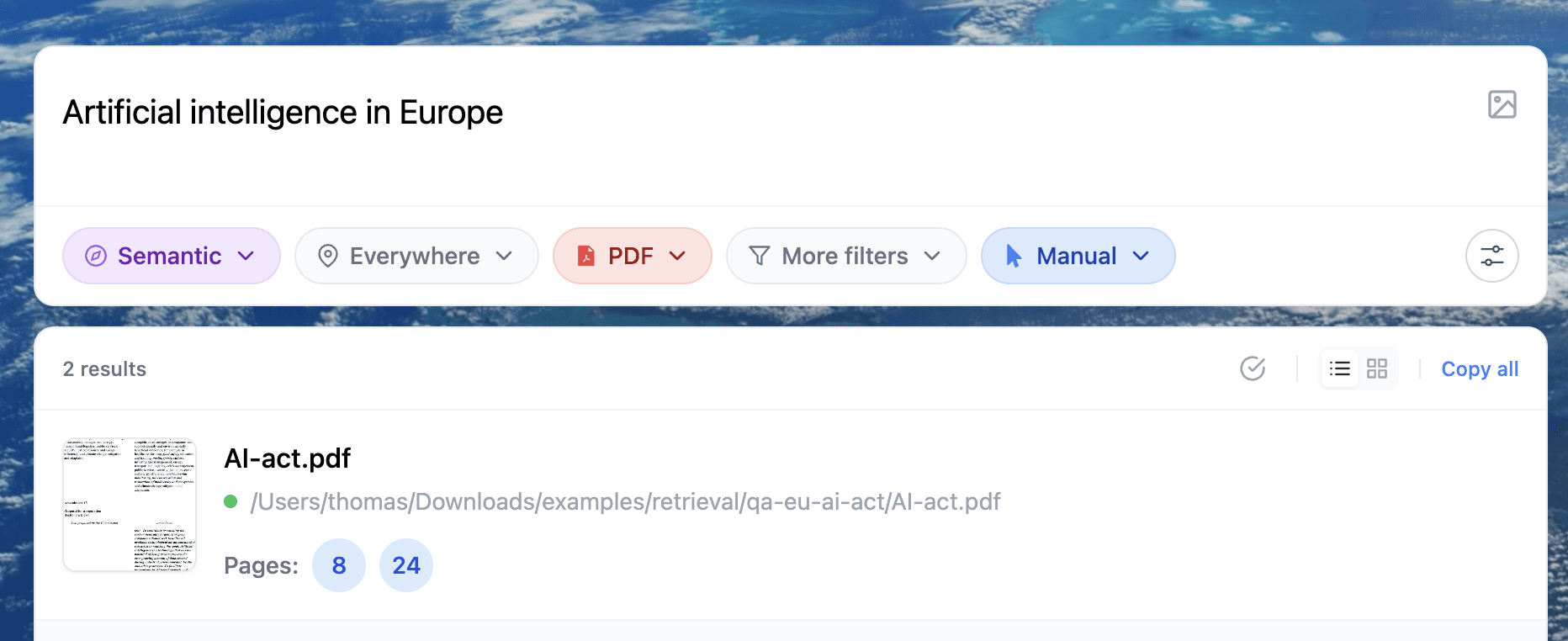
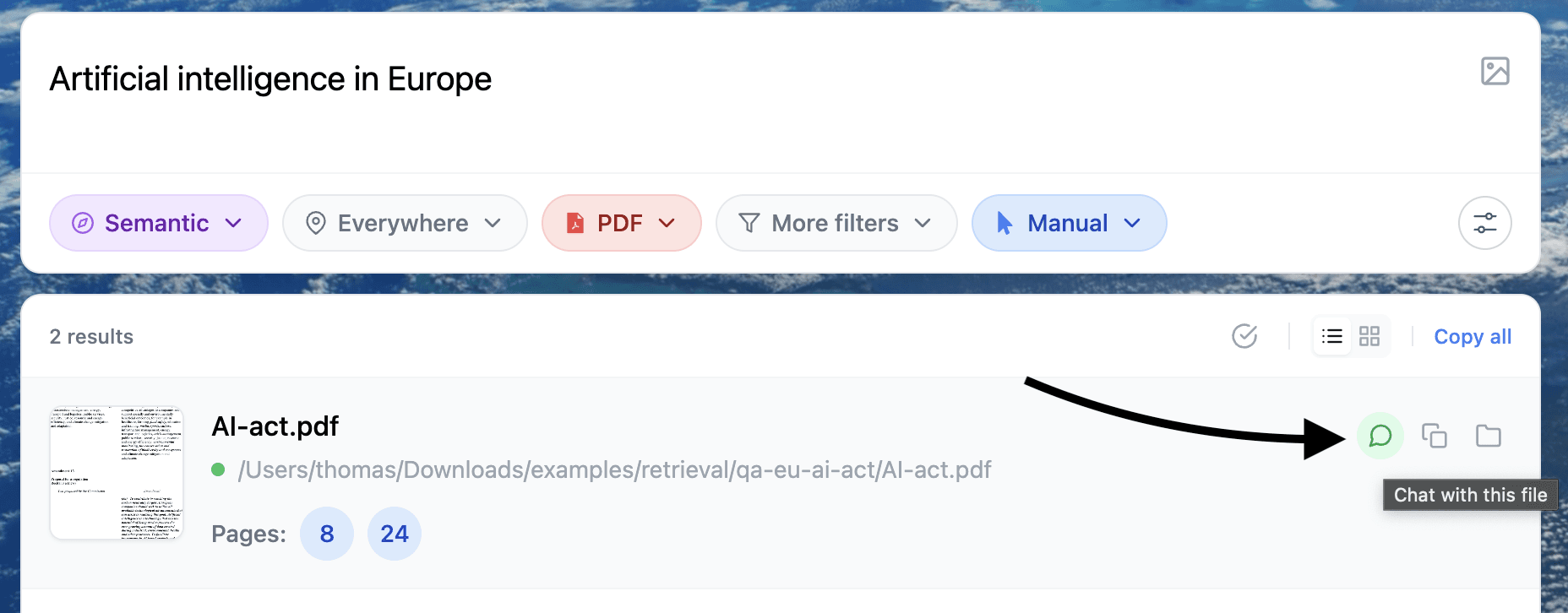
Step 3: Click “Chat with this file”
Once you find the file in results, click the Chat with this file icon to switch to Chat mode.
Now you are not searching anymore. You are interacting with the file.
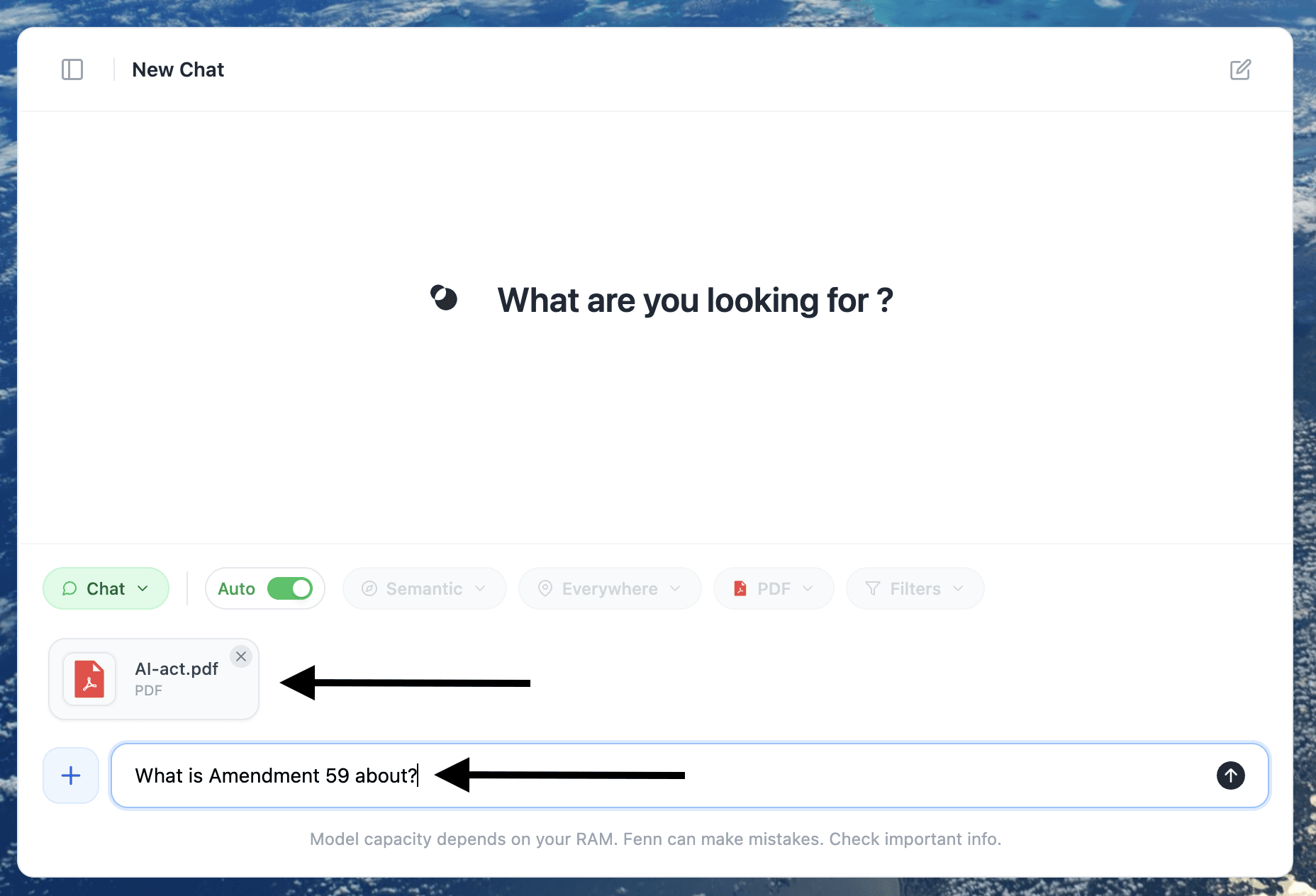
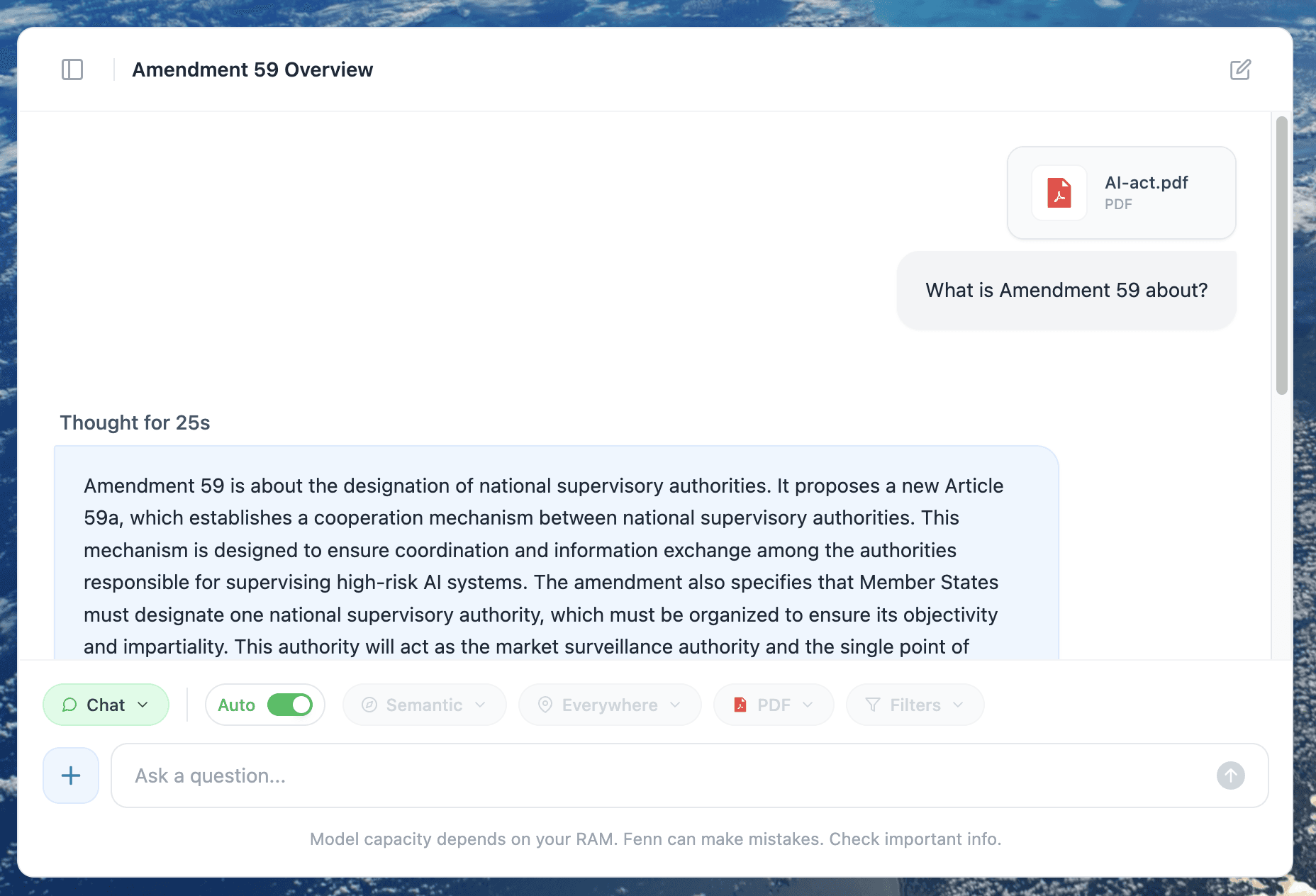
Step 4: Ask for what you actually need
Here are prompts that show the value immediately:
“Summarize this in 10 bullet points.”
“Extract all dates, amounts, and names.”
“What does this say about the deadline and penalties?”
“Turn this into action items with owners.”
“Explain this section in plain English.”
What you can chat with in Fenn
Fenn is built for modern file chaos, not just text docs.
PDFs (including long reports)
executive summaries
clause and section Q&A
key takeaways and risks
extraction of tables and structured details
Images and screenshots
This is one of the most underrated workflows.
You can take a screenshot of:
an invoice
a slide
an error message
a diagram
a scanned page
Then ask:
“Extract the text.”
“What does this screenshot say?”
“List the steps shown here.”
“Pull the important numbers.”
Scanned PDFs
Scanned PDFs are where default search often fails because the content is effectively an image.
Chat mode helps by letting you interact with what is inside the scan, so you can summarize, extract, and ask questions without manually retyping.
Audio and video
If you have meeting recordings, interviews, or screen recordings, Chat mode can help you:
pull key moments
extract decisions and action items
summarize long recordings
answer questions like “what did we decide about X?”
It also works as a general writing assistant
You can use Chat mode for everyday tasks too, even when you are not asking about a file:
“Rewrite this email to be more direct.”
“Fix spelling and grammar.”
“Shorten this message to 3 sentences.”
“Make this sound more professional.”
“Turn these notes into a clear outline.”
Again, the key point is privacy. Your content does not have to leave your Mac.
No ads. No data selling. That will not change.
Ads change incentives. Data selling changes incentives. “Free” products often need a way to monetize attention or information.
Fenn’s model is simple:
paid software
on-device by default
no ads
your data is yours
Pricing: pay once, use forever
If you want the “no subscription” option, choose the Lifetime license.
Lifetime: $199 one time
On-device indexing and search, Agent and Chat modes, 1 year of updates, 1 Mac, founder support.
If you want to start with a subscription instead, there is also a Local plan, but the point of this article is simple: you can buy once and keep using Fenn.
If you want ChatGPT-style help on your Mac without a subscription, without ads, and without uploading files to the cloud, use an on-device workflow.
Index your files, search, find what you need, then click Chat with this file, privately on your Mac.
Fenn is Private AI that finds any file on your Mac. Find the moment, not the file.