Chat With Your Files on Mac, 100% Privately

Chat With Your Files on Mac, 100% Privately
You already know the feeling: the file is on your Mac, but the information you need is buried inside it. A contract clause in a PDF. A decision inside meeting notes. A table inside a long report. You do not want to reread the whole thing, you just want an answer.
A lot of apps now let you “chat with documents,” and many of them are genuinely useful. The catch is that most of these tools work by sending your file content to a third-party model provider. That might be fine for public documents, personal notes, or low-stakes files.
But what if the file is confidential? What if you work with client data, financials, contracts, medical docs, internal memos, or research you cannot share? What if your company has strict privacy policies?
That is why Fenn exists.
Fenn is Private AI that finds any file on your Mac. And it includes a Chat mode that lets you interact with your files, without sending your data to Google, OpenAI, or Anthropic.
What “chat with your files” actually means
Chat mode is not a gimmick. It solves real, everyday tasks like:
Summarize a long PDF into the key points
Extract structured data from a document into a quick list
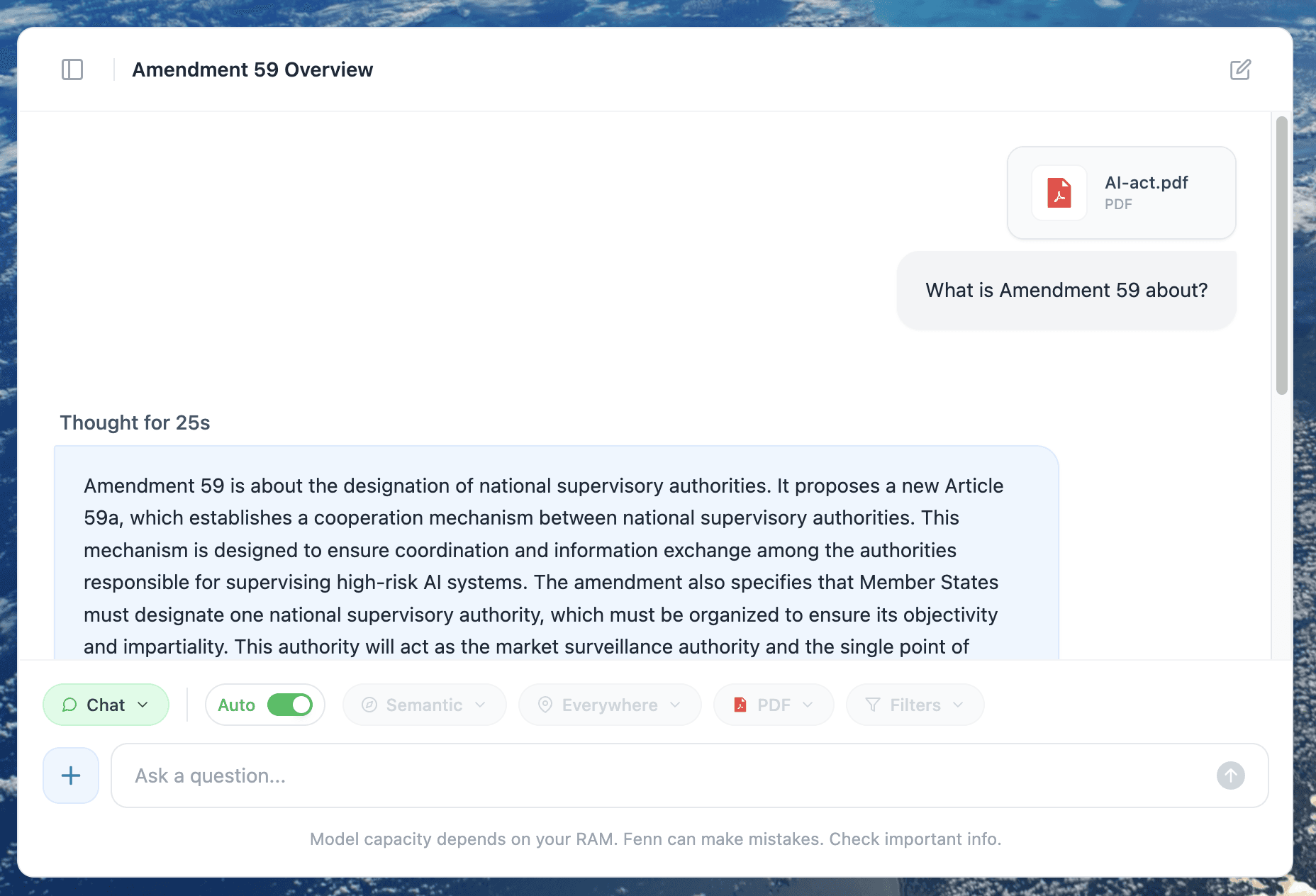
Ask questions and get answers with citations from the file
Turn a messy document into an outline or action items
Compare two sections of a report
Explain a confusing paragraph in plain English
The difference is where it runs.
With Fenn, this workflow happens locally, on your Mac, so your data stays under your control.
The simplest workflow: Search, then Chat with the file
This is the workflow to highlight because it feels obvious once you see it.
Step 1: Find the file with Fenn
Use Fenn’s search to locate the exact file you need, fast.
Use Keyword search when you remember exact terms
Use Semantic search when you remember the concept
Use Hybrid for the best mix of both
You can search across PDFs, documents, presentations, screenshots, audio, and video, then open the exact moment you need.
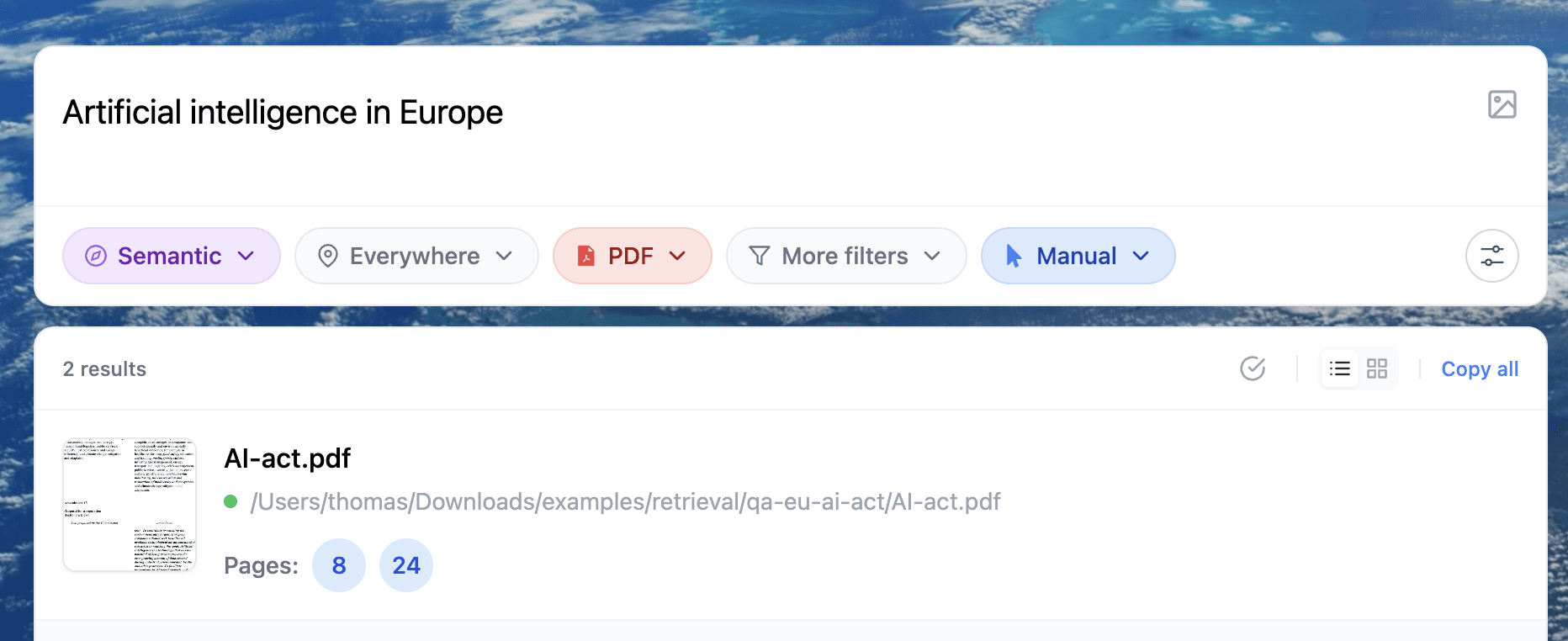
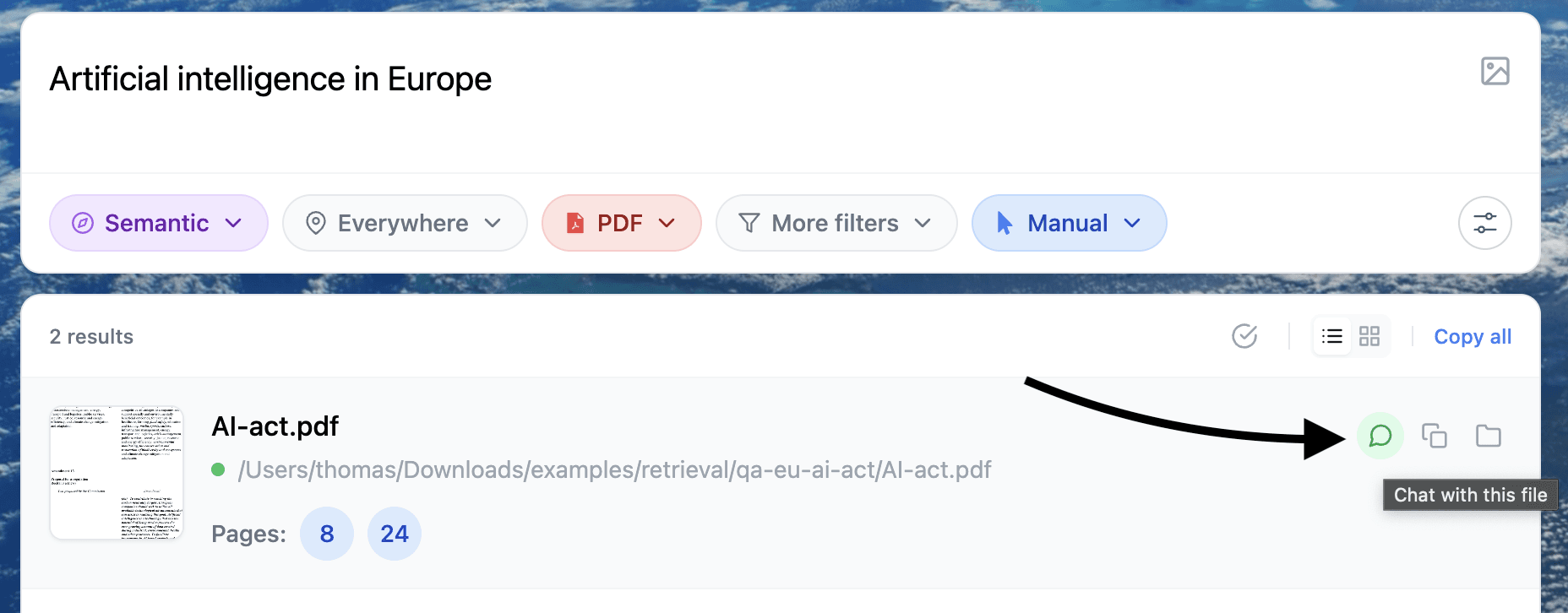
Step 2: Click “Chat with this file”
Once you have the right file in results, click the Chat with this file icon.
This switches you from “finding” to “understanding.”
Now you are chatting with that specific file, not the entire internet.
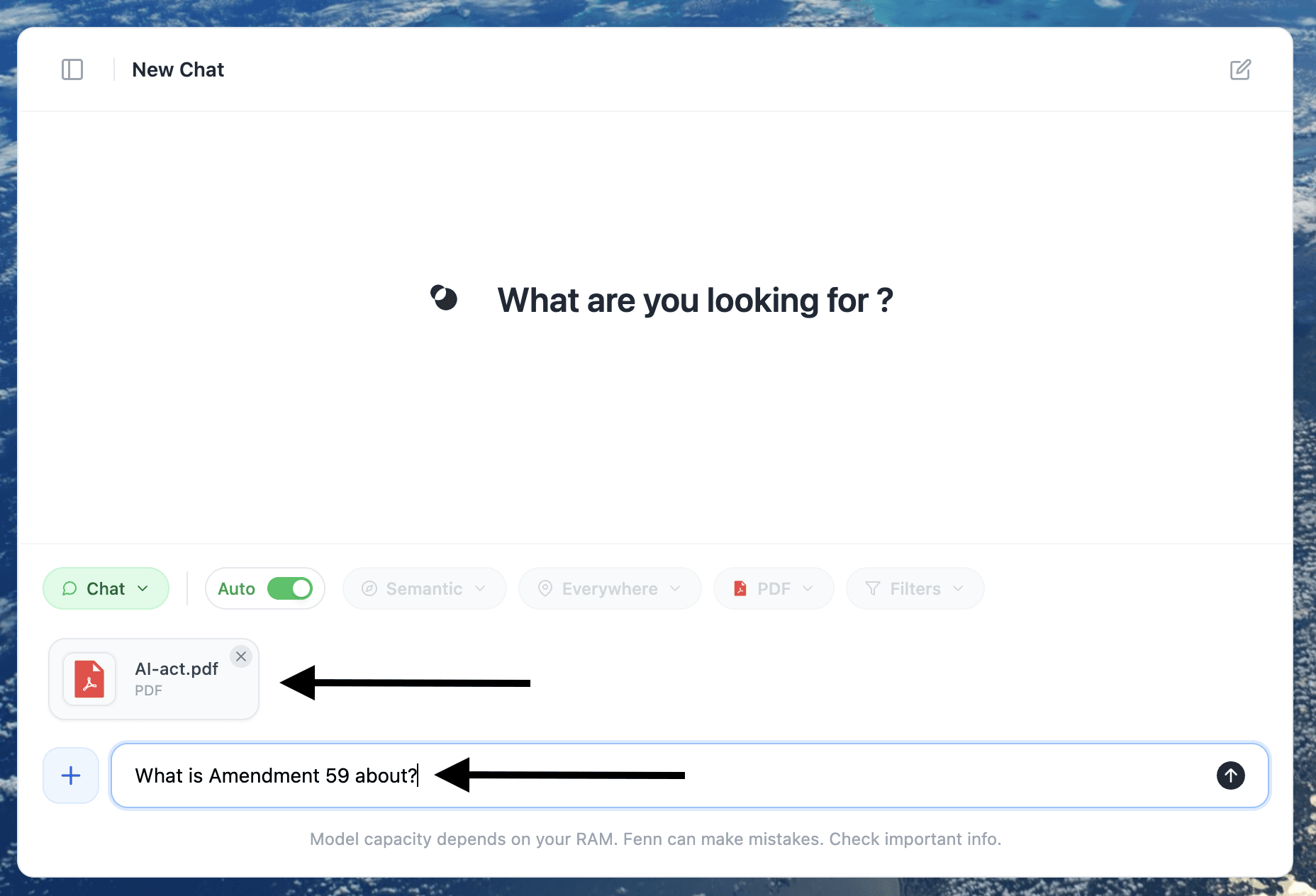
Step 3: Ask for what you actually need
Here are prompts that show the power quickly:
Summarization
“Summarize this in 7 bullet points.”
“Give me the executive summary and the key risks.”
“What are the 3 main conclusions?”
Data extraction
“Extract all dates, amounts, and parties into a table.”
“List every requirement and who owns it.”
“Pull the key metrics and their definitions.”
Q&A
“What does this document say about termination and notice period?”
“What is the deadline, and what happens if we miss it?”
“Which section discusses pricing changes?”
Actionable output
“Turn this into an action plan with owners and next steps.”
“Draft a short email summary I can send to my team.”
“Create a checklist from the requirements.”
This is what most people want from “AI with files,” but without the privacy tradeoff.
Why privacy matters more than most people think
If you paste confidential content into a typical cloud AI tool, you are making a decision that can have consequences:
You may violate client confidentiality or contract terms
You may break internal policy or compliance rules
You may leak sensitive product plans or financial info
You may create an audit headache later
Even when vendors are well-intentioned, enterprises often require strict controls for where data goes.
Fenn’s approach is simple: keep your files on your Mac and keep the workflow private.
Who this is for
This workflow is especially valuable if you handle sensitive or regulated material, for example:
Lawyers, legal ops, compliance teams
Accountants, finance teams, auditors
Researchers working on unpublished work
Healthcare or insurance documentation
Executives and operators working with internal memos
Anyone with NDAs, client contracts, or enterprise policies
If you are in one of these groups, the “chat with files” feature only helps if it is private by default.
Mini case: the PDF clause you need right now
Before: You open a PDF, search around, scroll, skim, and still miss the relevant sentence. Then you repeat.
After: You search the file in Fenn, click Chat with this file, and ask:
“What does it say about termination and notice?”
You get the answer immediately, and you did not upload the document anywhere.
Try it yourself
If you want the fastest way to feel the value:
Pick a long PDF you reference often
Search it in Fenn
Click Chat with this file
Ask for a summary, then ask one specific question you normally spend time hunting for
That is the workflow
Try Fenn, the Private AI that finds any file on your Mac.
Search, open, and then chat with the file to summarize, extract, and get answers, 100% privately.
Find the moment, not the file.