Turn Messy Files Into CSV on Mac

You do not always need another AI chat.
Sometimes you just need the data.
The total amount and tax value from thousand of receipts. Descriptions for 1,000 images. A list of names, emails, dates, or tags pulled out of a pile of messy files.
That is where most workflows break.
The information exists, but it is trapped inside GB of unstructured files.
PDFs. Screenshots. Scans. Documents. Audio. Video. Images. Emails. Files that were made for humans to read, not for systems to import.
So people end up doing the worst possible workflow:
open file
copy value
paste into spreadsheet
repeat 1300 times
It is slow. Boring. Error-prone. And completely unnecessary.
The real problem is not finding the file
Most people think the bottleneck is search.
Sometimes it is.
But in a lot of workflows, the bigger problem starts after you find the file.
You have the receipt.
You have the PDF.
You have the folder of images.
You have the recordings.
Now what?
You still need to extract the useful fields and turn them into something structured for it to be usable.
That usually means a spreadsheet.
And that is where manual work starts eating hours.
What “messy files” really means
Messy files are just files that contain useful information without a clean structure.
For example:
receipts in PDF, image, or scan format
invoices saved from different systems
screenshots with text inside them
old documents with names, dates, or amounts
image folders that need captions or descriptions
audio or video files that contain spoken information you want in table form
emails exported from different sources
The file is readable.
But it is not usable.
At least not without work.
What you can do instead
With Fenn, you can extract data from unstructured files into a structured format like CSV.
That means you can take a pile of files that all look different and turn them into rows and columns you can actually use.
For example, you can extract:
merchant name
total amount
tax amount
date
category
invoice number
sender
product name
description
tags
transcript-based fields from audio or video
Instead of manually entering each value, you ask Fenn to pull the data out for you.
That is the shift.
From files you read one by one to data you can sort, filter, and import.
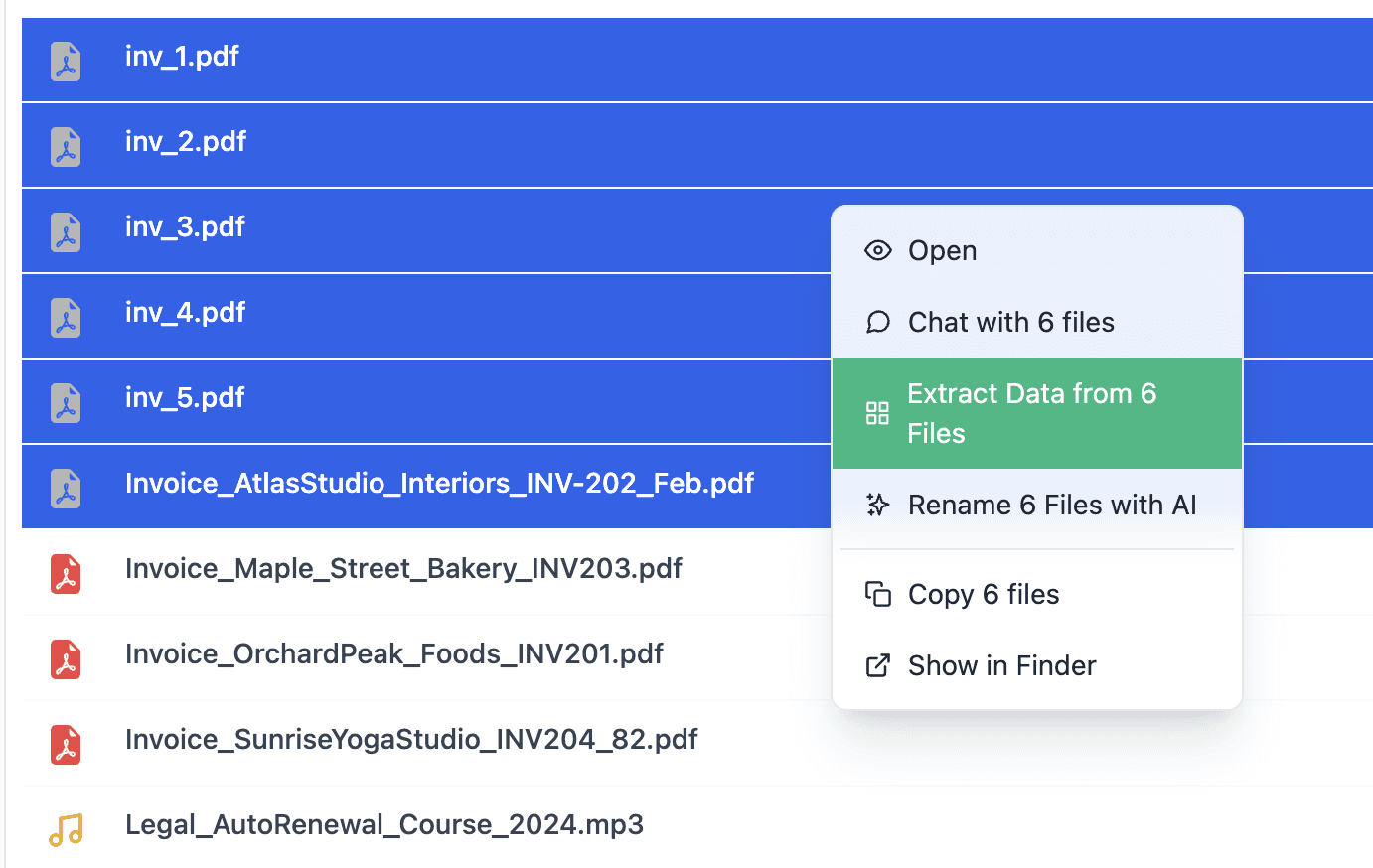
Simple example: select your invoices inside the Fenn's file browser, click on "Extract Data"
A practical example: invoices to CSV
This is one of the clearest use cases.
Let’s say you have 200 invoices across:
PDFs
photos from your phone
email attachments
scanned documents
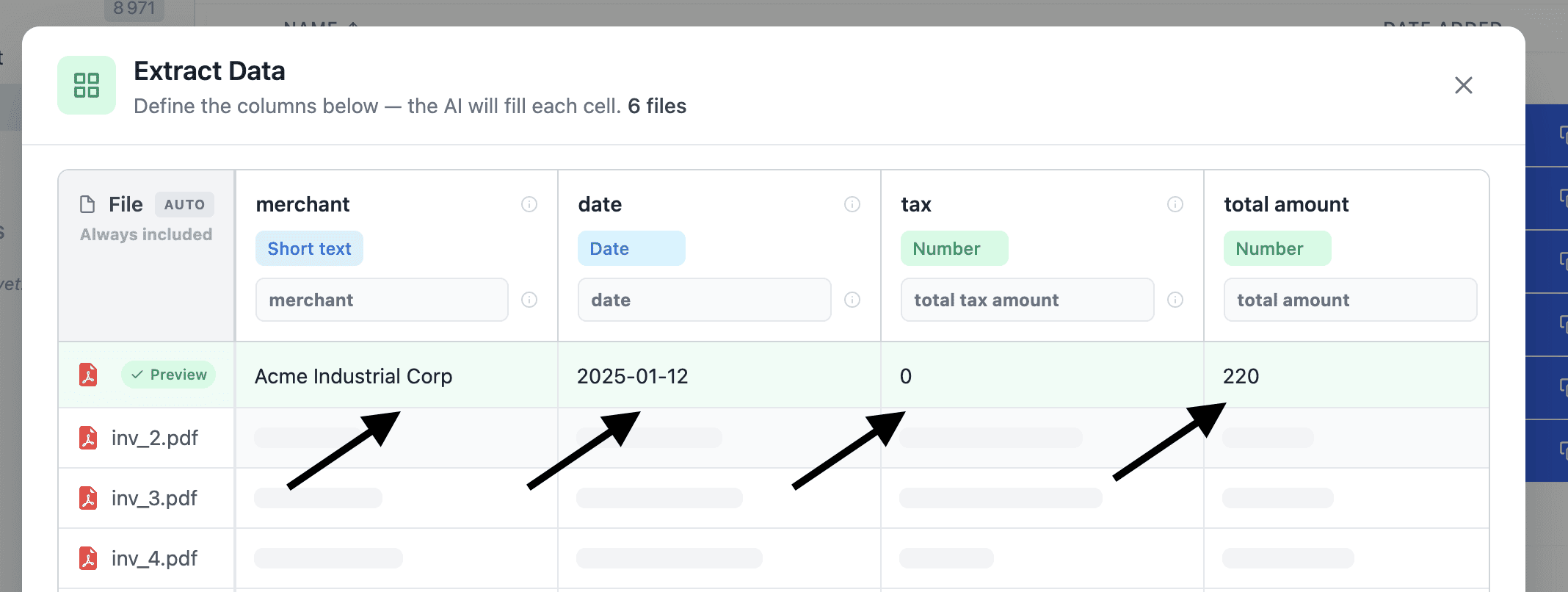
And you want a CSV with:
merchant
date
tax
total
currency
Normally, this is painful.
You open each file, find the right numbers, type them into a spreadsheet, and hope you do not make mistakes.
With Fenn, the workflow becomes much simpler.
You select the files, ask for the fields you want, and get structured output.
That means less manual entry, fewer errors, and a CSV you can actually use for accounting, expense review, or reimbursements.
Another strong use case: image description at scale
Now imagine you have 1,000 images.
Maybe product photos. Maybe screenshots. Maybe visual references. Maybe internal assets.
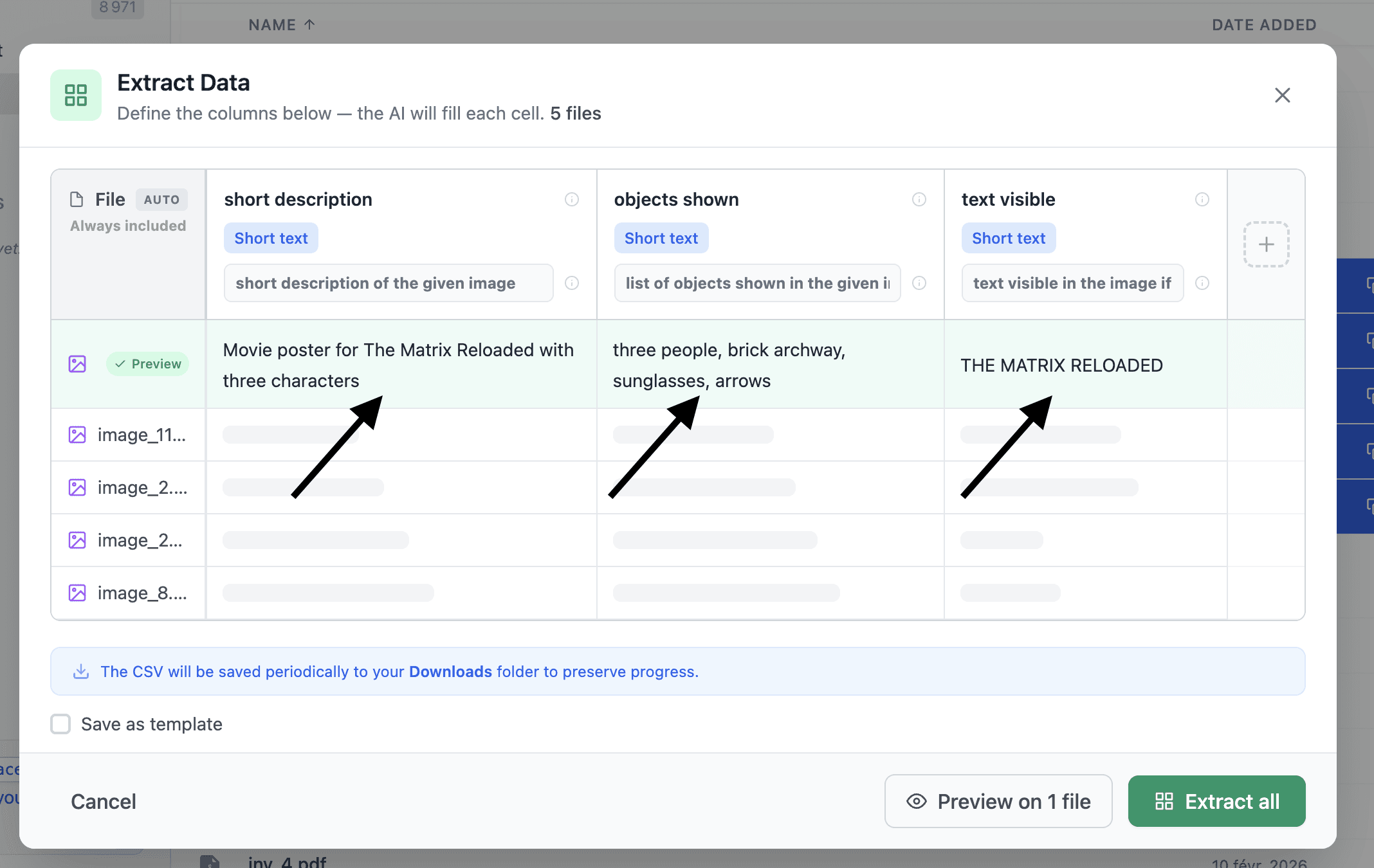
You want a spreadsheet with one row per image and columns like:
filename
short description
objects shown
text visible in image
category
Doing that by hand would take forever.
With Fenn, you can ask AI to describe each image and export the results into CSV.
That turns a dead image folder into structured data you can review, filter, tag, or import somewhere else.
Documents, PDFs, and archives become usable again
This also works well on old documents and PDFs.
For example:
extract names and titles from old reports
pull dates and amounts from archived documents
collect product references from spec sheets
turn a folder of mixed files into import-ready rows
A lot of teams already have the data they need.
It is just buried in files that were never structured in the first place.
Fenn helps bridge that gap.
Audio and video are not excluded
This is where the workflow gets even more useful.
If information is spoken instead of written, it is usually even harder to extract manually.
A recording might contain:
action items
names
deadlines
pricing discussions
repeated questions
topics by timestamp
With Fenn, audio and video can be transcribed and then turned into structured output too.
So instead of rewatching or relistening, you can pull the fields you actually care about and move on.
Why this is better than copy-paste workflows
Manual extraction breaks at scale.
It is fine for five files.
It is terrible for fifty.
It is miserable for five hundred.
And it gets worse when files come in different formats.
That is why structured extraction matters.
It gives you:
speed
consistency
fewer mistakes
data you can sort and filter
output you can import into other systems
The goal is not just to read files faster.
It is to turn them into something useful.
Why doing this privately matters
A lot of file extraction workflows involve sensitive data:
receipts
invoices
internal docs
business records
customer information
private media
old archives
That is exactly why Fenn is built to run locally on your Mac.
Your files stay on your device.
Your searches stay on your device.
Your extracted data stays on your device.
That matters a lot more than people think, especially when the files contain financial, legal, or personal information.
Fenn is not just an extraction tool
This is what makes the workflow stronger.
Fenn does not only extract data.
It also helps you:
search semantically across files
search by keyword
search by similarity
transcribe audio and video
chat with files privately
organize files automatically
find exact moments inside content
So the extraction feature is not living in isolation.
It is part of a bigger system that helps you find the file, understand the file, and then turn the file into usable output.
That is a much better workflow than using separate tools for each step.
Common workflows this unlocks
Here are a few practical examples:
expense reporting from mixed receipt formats
invoice extraction from old folders
generating image descriptions in bulk
extracting names and metadata from document archives
pulling fields from PDFs for import into a CMS
turning recorded meetings into structured notes
extracting product information from messy files
building CSVs from folders that were never designed for spreadsheets
The pattern is always the same.
Messy in, structured out.
The bottom line
Your Mac is full of useful data trapped inside files that are hard to process manually.
PDFs, images, documents, audio, video, receipts, and screenshots all contain information you may need in a spreadsheet, a database, or another tool.
Fenn helps you turn that messy input into structured CSV output, privately on your Mac.
So instead of spending hours copying values out of files one by one, you can actually use the information that is already there.
Download Fenn and find the moment, not the file.