Search Notion Notes on Mac
To search Notion notes on Mac, press Command + F to find text on the page you are viewing. Press Command + K or Command + P to search across your workspace.
Those shortcuts work well when you know the information is inside Notion. The harder problem begins when you remember the information, but not whether it was saved in Notion, a PDF, a presentation, a screenshot, or another file on your Mac.
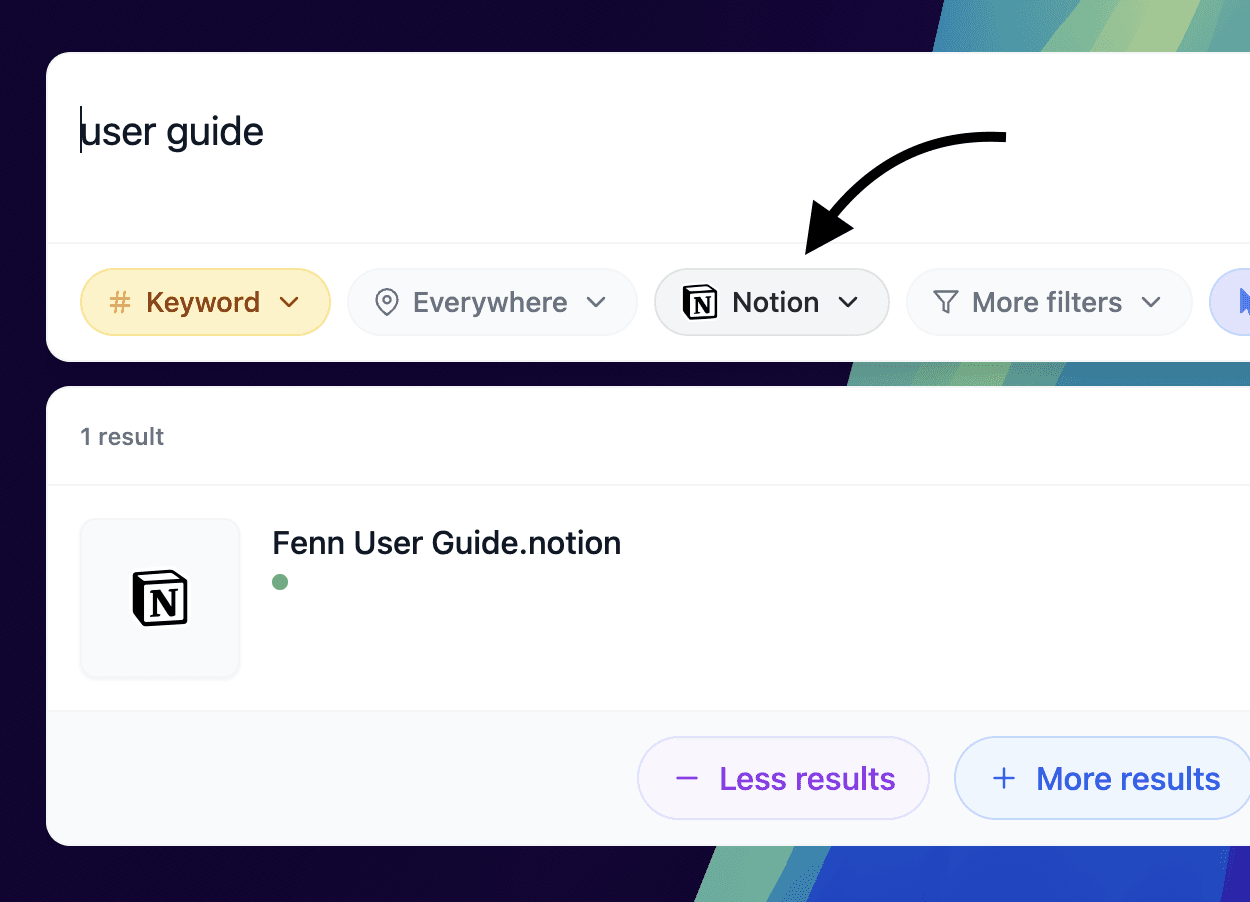
Fenn lets you search Notion notes alongside the rest of your Mac, using one private, on-device search experience.
Search within a Notion page
When you have already opened the right page, use:
Command + F
Enter the word or phrase you want to find. Notion highlights matching text on the current page so you can move between occurrences.
This is the fastest option when you:
Know which Notion page contains the information
Remember an exact word, name, number, or phrase
Need to find one section in a long document
Want to check whether a term appears on the current page
For example, you might open a project plan and search for:
launch daterenewalQ4 budgetSarahtermination clause
Searching the current page is precise, but it does not help when you have forgotten which page contains the detail.
Search across all your Notion notes
To search your Notion workspace, press:
Command + K
or:
Command + P
You can also select Search near the top of the Notion sidebar.
Enter a page title, keyword, phrase, person, or topic. Notion searches the pages you can access and displays relevant results.
Putting a phrase inside quotation marks can help when you need an exact match. For example:
"customer onboarding"
This is useful when your workspace contains similar pages about onboarding, customer research, product design, and support.
Notion also provides filters that can help narrow results by criteria such as:
Page title
Creator
Teamspace
Date
Content type
Native workspace search is usually the right tool when the information lives entirely inside Notion and you want to return to a specific page.
Search Notion without opening the app first
The Notion desktop app includes Command Search, which lets you search Notion while working in another Mac application.
You can trigger it with the keyboard shortcut configured in Notion’s preferences or from the Notion icon in the macOS menu bar.
This reduces the need to switch windows when you already know that the result is in Notion.
For example, while writing an email, you could open Command Search and look for:
The notes from your last client call
A product requirements page
A project deadline
A research document
An internal process
Command Search makes Notion easier to access from across macOS. However, the search is still focused on information available to Notion.
The larger problem: your project is not only in Notion
A Notion page rarely contains every part of a project.
You might keep the project plan in Notion while the supporting work is spread across:
A client brief in PDF
A budget in Excel
A proposal in Word
Designs in Figma or Sketch
Screenshots in Downloads
A presentation in Keynote
Meeting recordings
Email attachments
Files stored on an external drive
You may remember the information clearly without remembering its source.
Was the new deadline written in Notion or mentioned during a recorded meeting?
Was the final price in a database, spreadsheet, proposal, or email attachment?
Was the customer complaint copied into a note or captured in a screenshot?
The problem is not that the information is missing. The problem is that every app and file type has its own search box.
Search Notion notes alongside your Mac files
Fenn brings Notion notes into the same private search experience as the files stored on your Mac.
Instead of searching Notion, Finder, email, folders, and individual applications separately, you can search for the information you remember.
A search for:
customer research about onboarding confusion
could surface:
A Notion page containing interview notes
The original research report in PDF
A screenshot of the old onboarding flow
A presentation with the proposed redesign
A meeting recording where the problem was discussed
This helps you reconstruct the complete project instead of finding only the part stored in one application.
Fenn does not replace Notion. It makes your Notion notes part of a wider search system for your Mac.
Search by exact words or by meaning
Sometimes you remember the precise wording.
You may need to find:
An invoice number
A contract reference
A client name
A product code
A quoted sentence
A specific date
Keyword search is useful for these exact details.
At other times, you remember only the meaning.
You might search for:
customers abandoning the signup processdiscussion about moving the launch to Septemberresearch on keeping company AI data privatefeedback saying the dashboard was difficult to understandmeeting where we changed the pricing model
The relevant Notion page may use different wording. A note about “activation friction,” for example, might still be relevant to a search about “signup problems.”
Fenn supports both keyword and semantic search, helping you search with exact text when precision matters or natural language when your memory is incomplete.
Find the note and the source behind it
A note often summarizes another source.
You may have copied a conclusion into Notion from a longer PDF. A meeting note may refer to a timestamp in a recording. A project page may link to a presentation, spreadsheet, or design file.
Finding the note is useful. Finding the original source is often what lets you continue working.
With Fenn, matching Notion notes can appear beside related documents and media. You can open the relevant result and return to the source instead of manually retracing the project across multiple apps.
For supported documents and recordings, Fenn can also help you reach the relevant page, slide, or timestamp rather than opening a file at the beginning.
When to use Notion search and when to use Fenn
What you need to find | Best starting point |
|---|---|
A word on the current Notion page |
|
A known page in your workspace | Notion workspace search |
A recently viewed Notion page |
|
A database entry with known properties | Notion search and database filters |
A note when you remember only the idea | Fenn semantic search |
A Notion note and its related Mac files | Fenn |
Information when you do not know which app contains it | Fenn |
A detail inside a PDF, presentation, audio file, or video | Fenn |
The two search systems solve different problems.
Notion search helps you navigate Notion. Fenn helps you retrieve information across Notion and the rest of your Mac.
Private search for work notes
Notion notes can contain sensitive information, including:
Client discussions
Product plans
Internal research
Meeting decisions
Financial details
Personal notes
Unpublished ideas
Project deadlines
Fenn uses private on-device indexing. Your files are processed locally rather than uploaded to an external AI model provider for every search.
Fenn can also work offline, making it useful when you want AI-assisted retrieval without relying on a cloud search service for your local file index.
This does not change how Notion itself stores or syncs your workspace. It means Fenn’s indexing and search of supported content happen on your Mac.
How to search Notion notes with Fenn
The basic workflow is:
Install Fenn on an Apple Silicon Mac.
Add Notion and the relevant Mac folders or app libraries to the content Fenn indexes.
Allow the initial index to complete.
Open Fenn with its search shortcut.
Enter an exact phrase or describe what you remember.
Review Notion notes alongside matching files.
Open the most relevant result and continue working in the original source.
You do not need to search every app separately or remember the exact title of a note.
You only need to remember something about the information.
One search for the complete project
Notion is useful because it brings plans, notes, databases, and knowledge into one workspace.
Your work, however, usually extends beyond that workspace.
The research report is still a PDF. The budget is still a spreadsheet. The design is still in Figma. The meeting is still a recording. The final agreement is still a document stored somewhere on your Mac.
Use Notion search when you know the answer is in Notion.
Use Fenn when you remember the answer but not whether it is in Notion, a document, an image, a presentation, or another file.
Search your Notion notes and the files around them with Fenn.