Lockdown Mode on Mac: A Practical Guide
Lockdown Mode on Mac: A Practical Guide
Lockdown Mode is one of the most powerful security features Apple has shipped in years, and most people never turn it on.
This week, it made headlines because court records indicated the FBI could not extract data from a Washington Post reporter’s seized iPhone while Lockdown Mode was enabled.
That story is about an iPhone, but the takeaway applies to Mac users too: Lockdown Mode can materially raise the bar against highly sophisticated attacks. Apple positions it as “extreme, optional protection” for people who may be personally targeted.
This guide explains what Lockdown Mode does on macOS, what it blocks, when it is worth the tradeoffs, and how to turn it on.
What Lockdown Mode is
Lockdown Mode is a switch that reduces the attack surface of your device by limiting features that are commonly abused in targeted attacks, including mercenary spyware. Apple is explicit that it’s designed for a small set of higher-risk people, and that it can make parts of your device feel “less convenient” by design.
It’s available on macOS 13 (Ventura) or later, and must be enabled per device.
What Lockdown Mode blocks on Mac
Apple documents a wide set of restrictions across system features and connections. The exact list can evolve by OS version, but the big categories include:
1) Messages and attachments
Many types of attachments are blocked or limited, reducing a common delivery path for exploits.
2) Web browsing restrictions
Safari disables or limits certain web technologies that can be used to attack your device. Some sites may look broken, load slower, or not work properly.
3) FaceTime and incoming requests
Calls from unknown contacts can be restricted, depending on recent contact history.
4) Wired connections and accessories
New device connections are restricted unless your device is unlocked when the connection is made.
5) Profiles and device management
Lockdown Mode prevents installing configuration profiles, and blocks enrolling into MDM while it’s on (existing MDM profiles may remain).
Practical implication: if your Mac is managed by a company IT department, Lockdown Mode may conflict with how your device is administered.
When you should use Lockdown Mode
Apple’s own guidance is clear: this is for people who believe they might be targeted by sophisticated attacks.
Lockdown Mode makes sense if you are in any of these buckets:
Journalist working on sensitive sources
Lawyer handling high-stakes cases (or politically sensitive matters)
Executive or founder in a contentious industry
Activist, public figure, or person facing coordinated harassment
Anyone who has reason to believe they are being targeted with spyware
If your threat model is mostly “I don’t want to click a bad link,” the better default is: keep macOS updated, use FileVault, use strong passwords and passkeys, and enable 2FA. Lockdown Mode is for the next level.
How to turn on Lockdown Mode on Mac
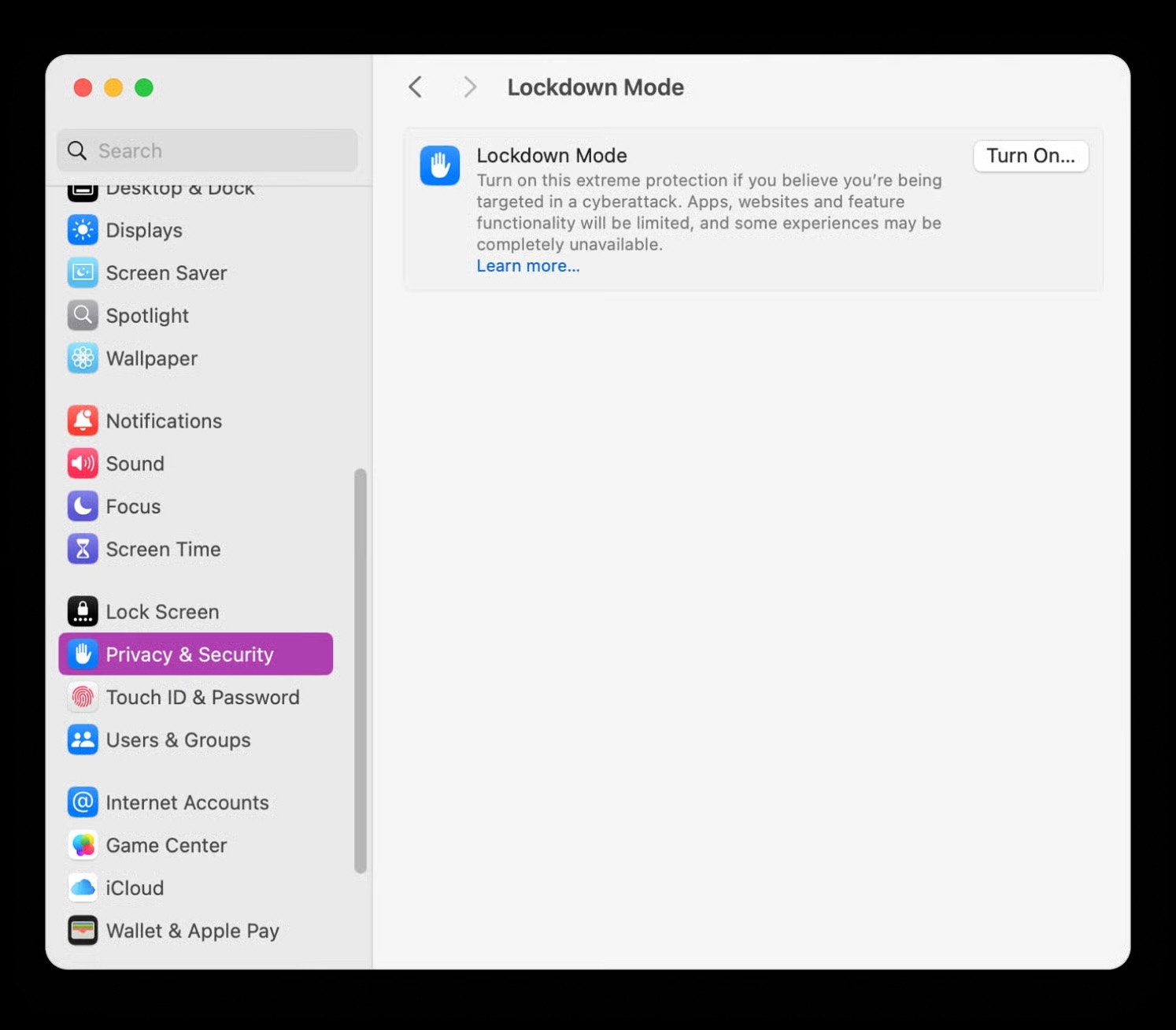
Apple’s steps (macOS Ventura or later):
Open System Settings
Click Privacy & Security
Scroll down to Lockdown Mode
Click Turn On
Click Turn On Lockdown Mode
Click Turn On & Restart
Enter your login password, then click OK
After restart, Lockdown Mode is enabled.
How to turn it off
Same path, then Turn Off and Restart.
Safari exceptions (important)
Apple notes you can allow specific websites to work normally by turning off Lockdown Mode for those sites in Safari settings.
A practical checklist before you enable it
Because Lockdown Mode can break “normal” flows, do this first:
Make sure you have your Apple ID recovery methods set up (trusted number, recovery key if you use one).
Confirm critical websites you need (banking, internal tools) still function, or add Safari exceptions after enabling.
If you use MDM for work, check whether enabling Lockdown Mode conflicts with your company requirements.
Tell close contacts that FaceTime or message behaviors may change (so missed communications do not surprise you).
Locking down your Mac is Step 1, keeping your AI workflow private is Step 2
A lot of people enable Lockdown Mode because they care about confidentiality, then immediately leak the same sensitive context by pasting documents into cloud AI tools.
If you want AI assistance for file work without sending your data to model providers, you need an on-device approach.
That’s where Fenn fits: Private AI that finds any file on your Mac. It indexes locally and lets you search inside documents, PDFs, screenshots, scans, audio, and video, then jump to the exact page, frame, or timestamp, without uploading your corpus to OpenAI or Google.
If Lockdown Mode is about reducing your attack surface, a private on-device file intelligence layer is about reducing your data surface.
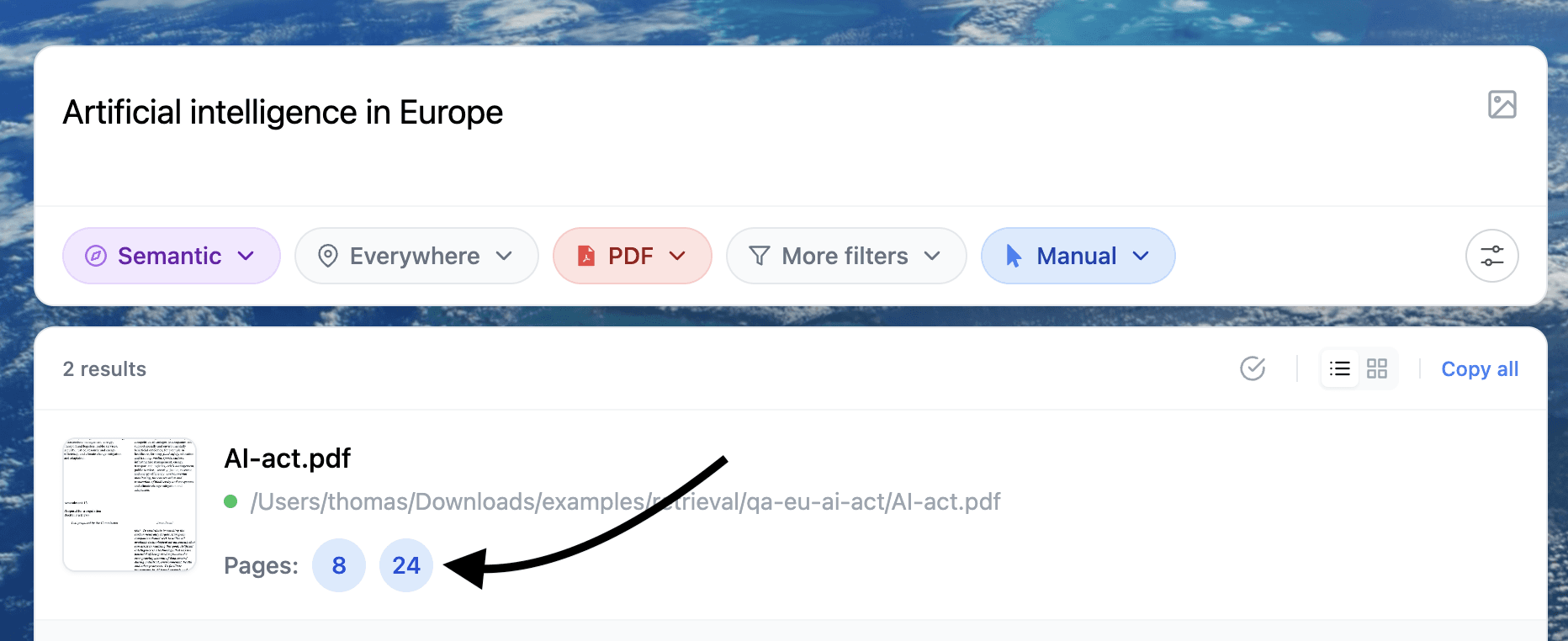
Find specific content inside your documents
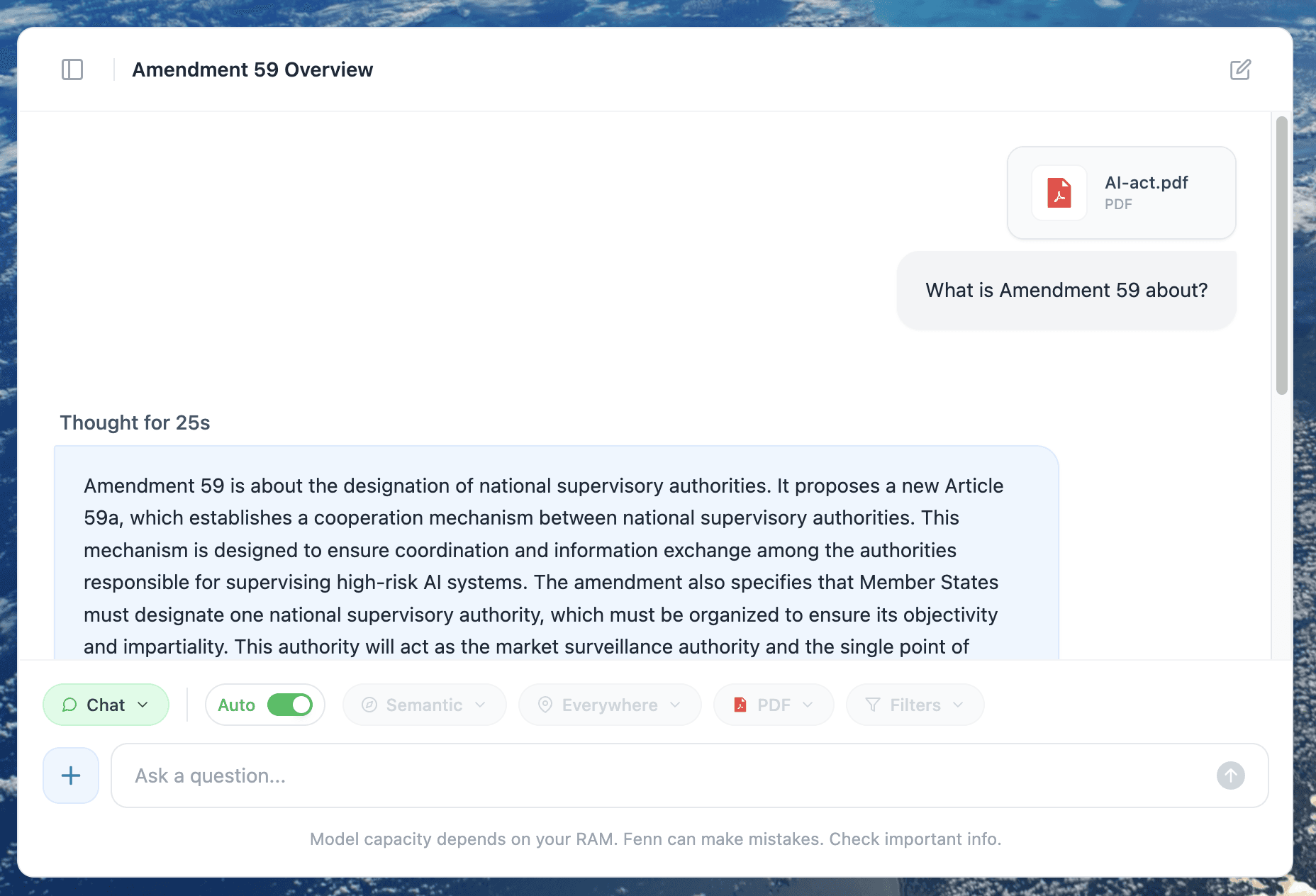
Then chat with your files 100% privately. Your data stay on your Mac.