How to Improve Raycast File Search

Raycast is a great app. It gives Mac power users a faster way to open applications, run commands, manage windows and access hundreds of useful extensions.
But precise file search is not its strongest feature.
Raycast File Search works well when you already know the name of the file you need. The problem is that we rarely remember filenames. We remember something inside the file.
You might remember a sentence from a PDF, a topic discussed during a meeting or a number shown in a presentation. That information can help you find the file, but it may never appear in its filename.
This is why many people spend hours carefully renaming and organizing files. They are preparing their folders for the day they will need to search them again.
There is now another option.
Search your files by content from Raycast
The Fenn extension brings precision file search directly into Raycast.
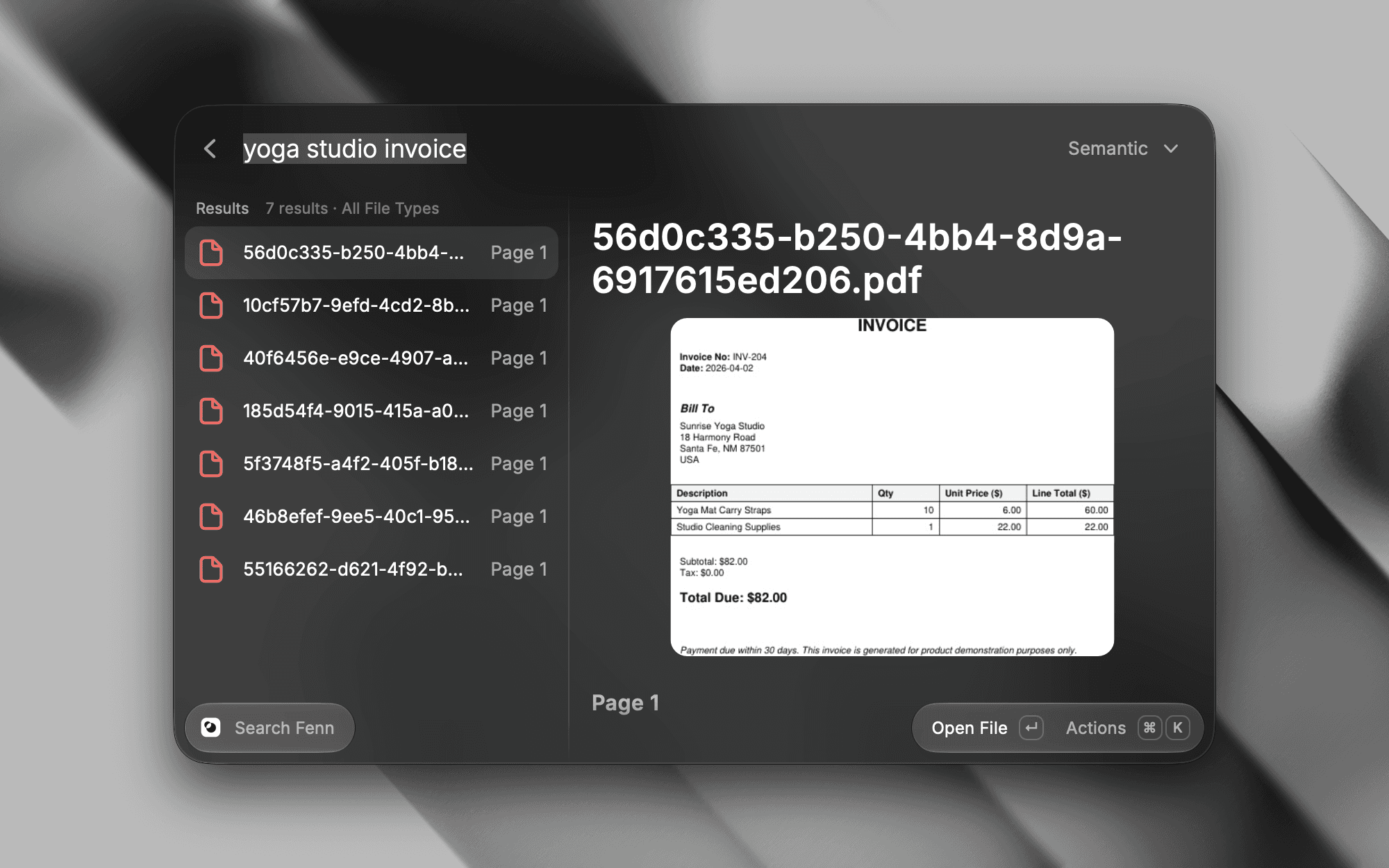
Instead of remembering a filename, type anything you remember about its content. Fenn searches its local index and returns the most relevant files and matching locations.
You can search for:
A sentence inside a PDF
A topic mentioned in a Word document
A value inside a spreadsheet
Text displayed in a presentation
A function inside a code file
Words spoken in an audio recording
Text visible or spoken in a video
Content inside a Sketch file
Fenn shows the matching passage, page, slide, code line or timestamp directly in the Raycast results.

This means you can find the right file even if its name is completely unrelated to what you remember.
From filename search to precision search
Raycast's default File Search is especially useful when you know part of a filename. Raycast also offers an optional Content Search feature that relies on macOS Spotlight and the content it can index.
Fenn takes a different approach. It creates a dedicated local index designed for deeper search across documents, media and other file formats.
For example, imagine that you are looking for a meeting recording in a folder containing dozens of videos. You do not remember its filename or when it was recorded. You only remember that someone discussed a new pricing structure.
Search for the topic in Raycast using Fenn. The result can show you the relevant video and the timestamp where the discussion happened.

The same process works for audio recordings and long documents.
Choose how you want to search
The Fenn extension includes several search modes:
Discover for exploring related information
Semantic for searching by meaning
Keyword for matching specific terms
Hybrid for combining semantic and keyword search
Exact for finding an exact phrase
Filename for traditional filename search
You can also filter results by file type when you already know whether you are looking for a document, image, video or another kind of file.
Stop renaming every file
Good filenames are still useful. But finding information should not depend entirely on whether you named a file correctly six months ago.
Fenn lets the content of a file describe itself.
You can keep using Raycast as the command center for your Mac while getting much more precise results whenever you need to find a document, recording or piece of information.
No complicated folder structure is required. Type what you remember and search what is actually inside your files.
Your files remain private
Fenn processes and indexes your files locally on your Mac.
The Raycast extension connects directly to the Fenn app running on your computer. Your files and search queries are not uploaded to Fenn, sent to a cloud AI provider or used for analytics.
This local-first approach gives you powerful search without requiring you to share the contents of your Mac with another company.
How to use Fenn inside Raycast
To get started:
Install Fenn and allow it to index the folders you want to search.
Install the Fenn Search extension from the Raycast Store.
Keep Fenn running on your Mac.
Open Raycast and launch Fenn Search.
Type anything you remember about the file.
Raycast Pro is not required.
Fenn gives you precision file search without forcing you to leave Raycast. Instead of searching only for what a file is called, you can search for what the file actually contains.